Kling O1 Image-to-Video: turn a still photo into moving footage
Bottom Line Up Front (BLUF): Kling O1 Image-to-Video is an AI video generator that animates a single photograph. Upload a picture, optionally type what should happen in the frame, and the model produces a short clip where the still image comes alive: a person blinks and smiles, water ripples, the camera drifts closer. No editing software, no keyframes — just a photo and a sentence.
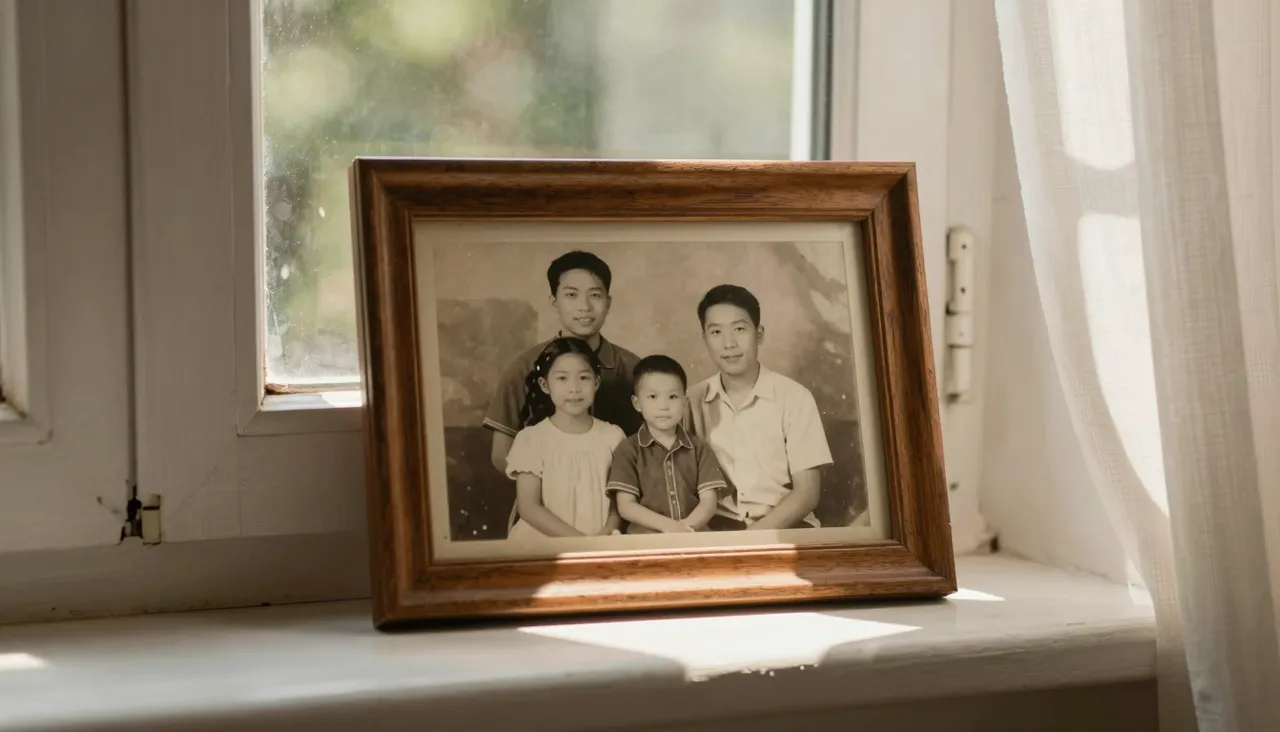
How photo-to-video generation works here
Start with one image. Drop it into the generation form, add a brief motion prompt such as "the man turns toward the camera and laughs" or "snow falls gently over the street", and run the job. The AI invents the in-between frames while keeping the face, clothing and background faithful to your original shot. The clearer your action description, the closer the output matches what you imagined.
You can also skip the prompt entirely and let the model decide how the scene should move — a good way to explore what a picture is capable of. Every finished clip lands in your generation history, where you can download it, extend it, grab the final frame, or rerun the same photo with a sharper prompt.
One photo or two: picking the right mode
This model accepts up to two images. With a single photo you choose between 5-second and 10-second clips, and the motion unfolds forward from that frame. Add a second image and the duration range opens up to anywhere from 3 to 10 seconds, because the generation now travels between two anchor points instead of drifting freely.
The two-image mode shines when the ending matters. Show a product boxed in the first frame and fully assembled in the second, and the AI invents a smooth transformation between them. That gives you far more control over the finale than any text prompt could — you literally hand the model its destination.
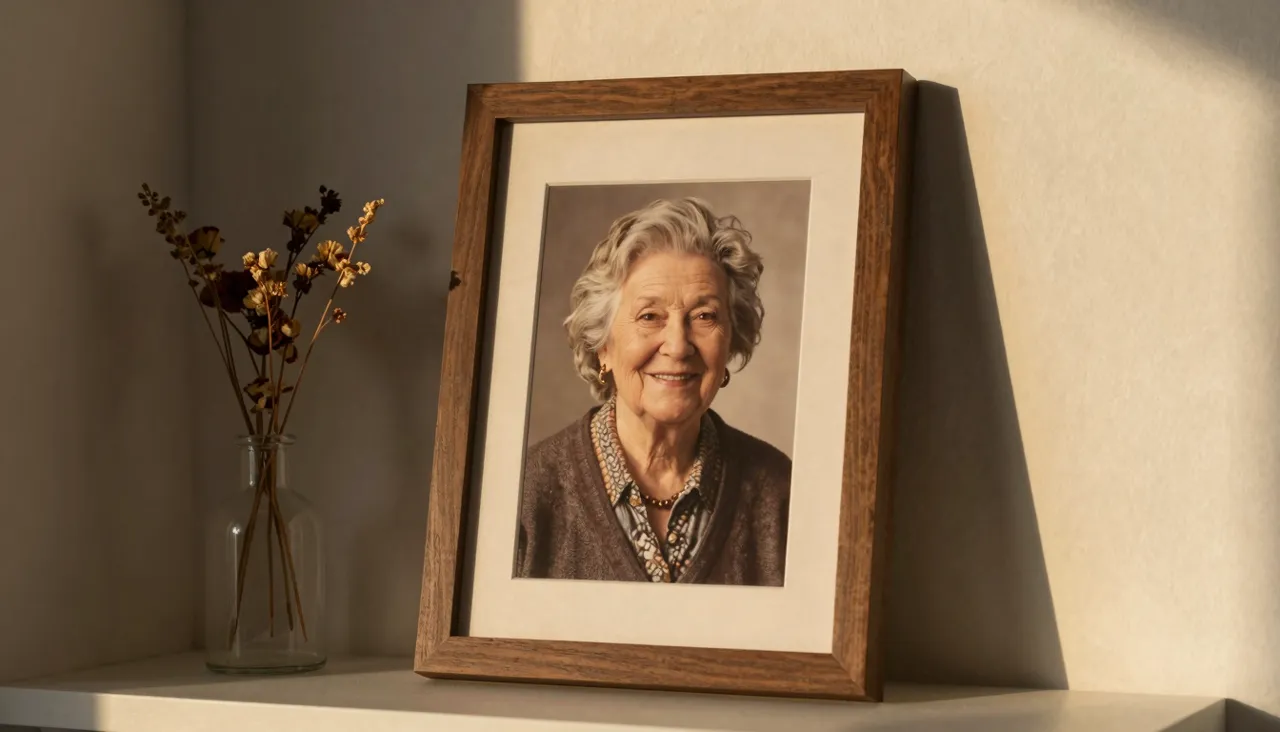
Which pictures animate best
Clean, well-lit shots with one obvious subject work best: a portrait, a product on a plain backdrop, a landscape, a pet. Busy scenes with crowds, tiny text or complex reflections give the network too much to track at once, and glitches creep in as things move. When in doubt, simplify the frame before uploading.
Vintage family photos are a wonderful use case. Scan an old print, upload it, and ask for subtle motion — a blink, a soft smile, hair stirring in a breeze. The result feels far more personal than any slideshow, and it takes minutes. Just keep the requested movement gentle; archival images rarely survive dramatic action gracefully.
Practical uses for animated photos
Common jobs include story covers built from an ordinary selfie, living backdrops for presentations, animated event posters, and product listings that catch the eye as shoppers scroll past. Anywhere a static image feels flat, a few seconds of motion earns attention — and that is precisely the niche this tool fills.
Power users treat each clip as a building block. Generate a scene, pull out its last frame, feed that frame back in with a fresh prompt, and continue the action. Chained together, one photograph grows into a longer, coherent sequence where every segment picks up exactly where the previous one stopped.
Common mistakes to avoid
The biggest one is overloading a short clip with plot: "she stands up, walks across the room, turns around and waves" simply will not fit, so the AI improvises and the result drifts off course. Request one or two simple actions per generation and build longer stories through chaining instead.
Blurry or dark source photos are the other trap. The model animates your image; it does not repair it, so a noisy input becomes a noisy video. Finally, write prompts about motion, not appearance — the network already sees what the person looks like, it only needs to know what they should do.
Frequently asked questions
Do I have to write a prompt with my photo?
No. Leave it blank and the model picks a natural motion on its own. A prompt is worth adding when you want something specific — a particular gesture, a camera move, a mood — because a single clear sentence steers the result noticeably.
What is the point of uploading a second image?
Two images define the start and the end of the clip, and the AI builds the journey between them. It is the most reliable way to control how a video finishes, and it also unlocks a wider range of durations, from 3 to 10 seconds.
The face warped during movement — how do I fix it?
Use a sharper, closer-cropped source photo and ask for calmer motion; fast head turns are the usual culprit. Rerunning the same job also helps, since every generation produces a slightly different take.