Who spoke when for free: speaker separation and live captions
After a meeting, an interview or a lecture you are left with a recording where several people talk, and an ordinary transcript cannot tell you who said what. Who spoke when is a free browser tool: it splits the recording into speakers (up to four), optionally turns the speech into a timestamped dialogue, and its second tab runs live captions straight from your microphone. The file is never uploaded, no tokens are spent and no account is needed.
How it works
Speaker separation is powered by the NVIDIA Sortformer model: it finds up to four speakers and lays out the stretches of time in which each one was heard. If you leave the “Also transcribe the speech” box checked, the words attach to the speakers — you get a dialogue transcript labelled “Speaker 1”, “Speaker 2” and on, which you can copy or download as TXT, SRT, VTT or JSON. A badge next to the timeline shows how many speakers the model found.
The first run downloads the model weights to your device — about 380 MB in total. After that they stay cached in your browser and later runs need no network. With a graphics card (WebGPU) the analysis is quick; without it the engine falls back to the processor (WASM) — noticeably slower, but the result is the same, and the tool will tell you when that happens. Audio is folded down to 16 kHz mono inside the browser; nothing needs recording anywhere.
Marking your own recording
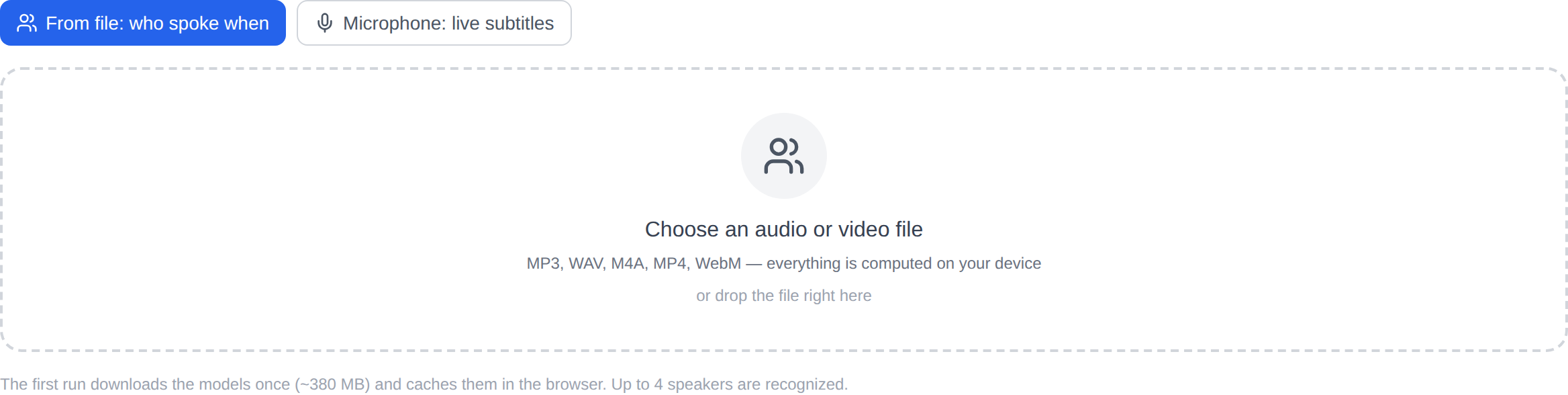
- Open the tool and pick an audio or video file: MP3, WAV, M4A, MP4 and WebM are accepted, and you can drop the file onto the frame.
- Decide on the “Also transcribe the speech” box: checked, it gives you a timestamped dialogue; unchecked, only the “who and when spoke” timeline.
- Press the start button. On the first run, wait for the models to download — the progress bar keeps you posted.
- The result is the timeline plus the dialogue. Copy the text with a button or download it in the format you need.
Live captions from the microphone
The second tab takes sound straight from the microphone and captions it phrase by phrase as you speak: the current phrase shows up large, finished ones remain in the list below. It suits a meeting, a lecture or a video call, when captions are needed now rather than after processing a file. Microphone access is requested by pressing the button; nothing is written to a file and nothing leaves the browser.
What to know in advance
The tool is young and experimental: the quality of separation depends on the recording. Clean microphone conversations split confidently, while noisy, echoey recordings with constant interruptions can confuse it. Speech work also takes memory — plan for about 1 GB of headroom. On the processor path (WASM) a long recording takes noticeably longer than on a graphics card. The model does not learn names: the “Speaker 1” and “Speaker 2” labels are meant to be renamed after export, to match your minutes.
Who needs it
A journalist can find quickly where a new voice enters an interview. A student can lay a lecture recording out line by line: where the professor spoke and where the audience asked. A podcast editor can locate the stretches of a long session where everyone talked over each other and cut them out. A meeting secretary can build a draft of the minutes with timecodes without sending the recording anywhere.
When you need something else
If what you want is plain text rather than a breakdown by voice, open audio and video → text. The other tools of the section live on the Audio page, and more free local tools are under Other tools. The analysis is done by the open FluidAudio library (MIT licence): the code and models live in your browser, with no detours to other servers.