Who Spoke When for Free: Speaker Diarization and Subtitles

Any recording with more than one voice leaves you with the same question: "who said that?". Who Spoke When (free) answers it right in your browser: the tool finds where lines begin and end, sorts them by speaker — "Speaker 1", "Speaker 2" and so on, up to four people — and, if you want, adds the text as well. The file is never uploaded, no tokens are charged and no account is needed.
How speaker separation works
The task is called diarization: the model listens to the whole stream and answers two questions separately — who was speaking, and in which minutes. Voices are compared by timbre, so lines from the same person land on one track even when people talk over each other. What you get back is a timeline: every row is a line of speech with its own timestamps and a speaker label.
Everything is computed on your device. The models download into your browser once and then work offline; on a graphics card via WebGPU the analysis runs noticeably faster, and if the browser will not give one up, it falls back to the processor via WASM — correct, but slow. Check the memory note before a long recording: the models want about a gigabyte to run comfortably.
Analyzing a file step by step
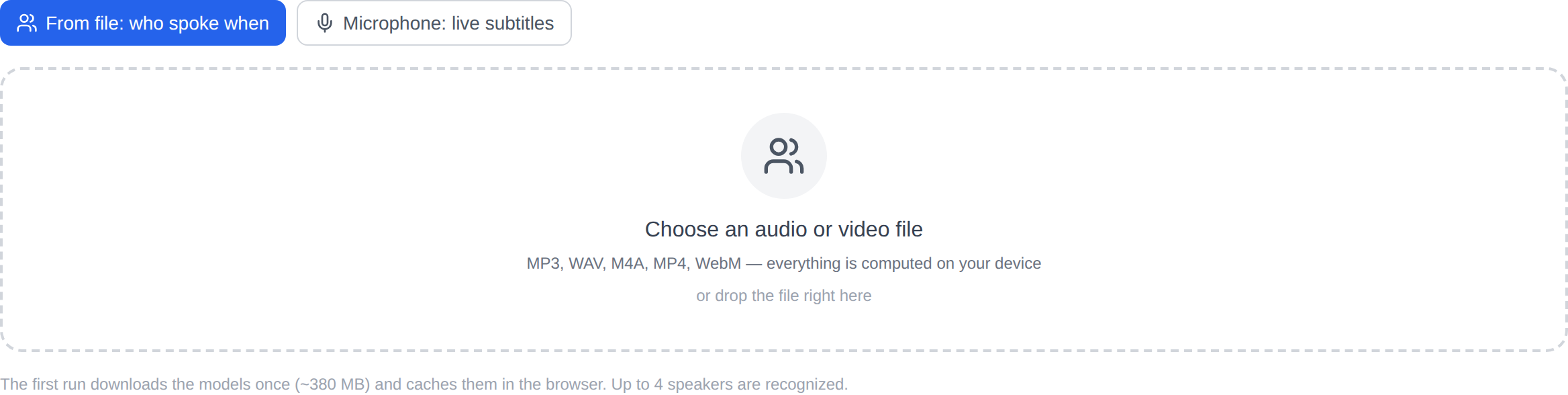
- Open the tool and, on the file tab, pick a recording: MP3, WAV, M4A, MP4, WebM and other media files are accepted.
- The "Also transcribe the speech" checkbox brings in the text model: words are laid onto the speaker tracks and assembled into a readable dialogue. With it off, the tool only splits the recording by voices, which is faster.
- The first run downloads the models (about 380 MB) and caches them; the next analyses start right away.
- Wait for the timeline and dialogue, then copy the result or export it as TXT, SRT, VTT or JSON. In the SRT and VTT subtitles every line carries its speaker name, so the file plugs straight into a video editor.
Live subtitles from the microphone
The second tab needs no file: switch on your microphone and phrases start appearing on screen as you speak. A finished phrase moves into the list with a timestamp while the next one types itself out underneath. The sound is not recorded and is not sent to a server — the subtitles live only on your page, and you can check that any time with the network tab in your developer tools. It suits calls, meetings and lectures where you need the transcript while the conversation is still going, not afterwards.
Honest limits
This is a speaker separation tool, not a universal transcriber. The speech recognition model was trained mainly on English: it will transcribe a conversation in another language, but with noticeably more mistakes than an English one. Up to four speakers are separated reliably; a recording from a noisy hall with interruptions will fair worse than a calm interview. A transcript with speaker names is not professional transcription, so read it over before passing it on.
Hardware is the other limit: a weak device may not have enough memory for the models, and processor-only analysis takes a while. In exchange the price is fixed at nothing: no queues, no charges, no uploads.
Who it fits
A journalist can see the structure of an interview and pull out quotes in minutes. A meeting host can get a "who said what" record without scrubbing through the tape. A video editor can plug subtitles with speaker names into a project through SRT or VTT. A student can break a lecture into lines and talking points.
If you need text without speaker separation and in many languages, speech recognition (free) runs alongside. The rest of the section lives on the Audio page, and free local tools are collected under Other Tools. Start with a short five-minute recording: one first run with the model download is enough to hear how your recordings survive the analysis.