Video Converter and Trimmer Online Free
You can now convert and trim video for free right in your browser: the Video Converter & Trimmer (free) tool has arrived in the Other Tools section. It changes the format, compresses, trims and extracts audio — with no file upload and no tokens spent.
Why it is free
Usually conversion runs on someone else's server: the file is uploaded, the processing is billed by the minute. Here the ffmpeg engine is compiled to WebAssembly and runs in your browser. Our server only serves the tool's code — it has nothing to compute, so no tokens are charged and the number of conversions is unlimited.
Privacy comes for free too: the file stays on your computer. That matters when you cut work recordings, family videos or personal voice notes.
How to convert or trim a video: step by step
- Open the tool page — it is the Converter tab of the Other Tools section.
- Upload a file: click the picker or drop a video or audio file right into it.
- Choose the output format: MP4 for maximum compatibility, or GIF for a short animation.
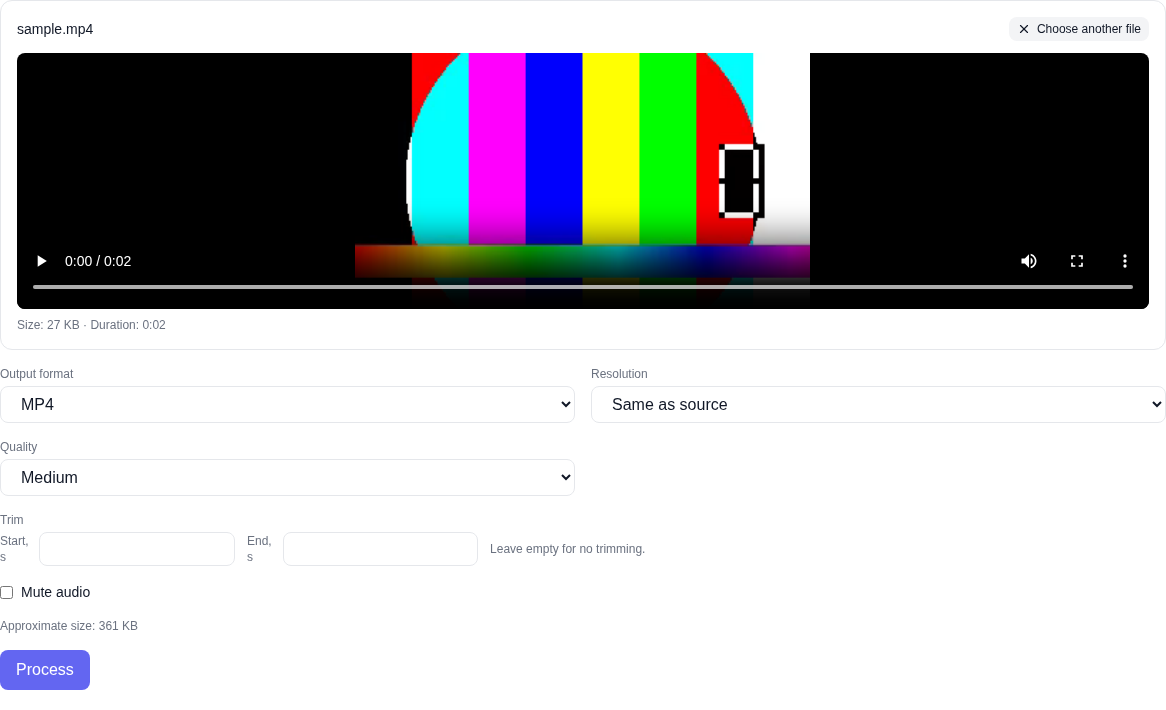
- Optionally set the resolution (from source down to 360p), the quality, and trim the clip — start and end are given in seconds.
- Check the approximate result size and press "Process".
- Wait for the progress bar and download the finished file with one button.
Which formats are supported
Video: MP4, WebM, MOV, MKV and GIF. Audio: MP3, M4A, WAV and OGG. Other common input formats are accepted too — AVI, 3GP, FLV, TS, WMV, FLAC, AAC, OPUS and more: the tool reads them and saves them in the format you choose.
What else the tool can do
- Compression — resolution from source down to 360p and three quality levels to make the file lighter.
- Trimming — start and end in seconds: the rest is simply left out of the result.
- Mute — the mute checkbox drops the audio track.
- Audio only — pick an audio format and the video is dropped, keeping the sound.
- Size estimate — the approximate weight of the result is shown before you start.
- Progress and cancel — you can see how much is done and stop the processing.
Everything runs on your device
Processing is done by ffmpeg compiled to WebAssembly: the file goes into the browser virtual file system rather than our server — no request carrying it is sent. There is no paid API and no tokens are charged. Only the CPU is needed: no graphics card, and very long videos take longer on a phone.
What the tool does not do
Honestly about the limits: video is re-encoded, so each pass loses a little detail — that is normal for compression. The tool does not improve quality or increase resolution: if that is what you need, the Video section has an upscaler. It does not split music into vocals and instrumental either — that is what the vocal separator is for.
Who it is for
The tool helps when a player or a social network does not support the format, when a clip is heavier than a messenger limit, or when you need one fragment out of a long recording. Next to it, the Other Tools section has offline text translation and audio/video to text transcription — they run right in the browser as well.
Frequently asked questions
Is the conversion really free? Yes. No tokens are charged and the tool has no paid API — your computer does the work.
Is my file uploaded to your server? No. The file is processed locally and never reaches our server.
Which formats are supported? Video: MP4, WebM, MOV, MKV, GIF. Audio: MP3, M4A, WAV, OGG. Other common input formats are accepted too.
Can I trim a clip? Yes. The start and end of the fragment are set in seconds, and only that segment goes into the result.
Does it work on a phone? Yes, though long videos take noticeably longer on a phone.