Vibe coding online: no install, the project lives at a link
Vibe coding online means the whole project lives in your browser: no code editor, no Node.js, no terminal to install. You describe the outcome in plain words, the AI writes the code and starts the app, and the finished site opens at a regular HTTPS link you can send to a client or a teammate. Below: how this works on NeuralSpace, what to type into the description field, and what happens once your project already lives at an address.
What “nothing to install” actually means
The usual route to a first project goes like this: download Node.js, figure out npm, install an editor, set up a terminal, rent a server, wire up an SSL certificate. That is where half of beginners drop off — not because the code is hard, but because the setup is. Vibe coding online removes exactly that part: your workstation is the browser, and the rest is handled by the platform.
- No code editor or terminal — the agent writes the code, and you request changes in words.
- No local Node.js or package manager — the environment is assembled on the platform side.
- No server, port or HTTPS setup — a new project immediately gets a public address with a certificate (a domain like
project-name.app.neuralspace.pro). - No administrator approval — any computer with a browser works, even a locked-down work laptop where you cannot install anything.
The trade-off is the internet: without a connection you cannot open the project. On the other hand, your workspace is no longer tied to one machine. Start at the office, continue at home on a laptop — open the same project in the browser and pick up where you left off.
From a description to a live link, step by step
The starting point is the vibe coding page on NeuralSpace; its button leads into the working part of the service — the “Code” section. Then:
- Sign in or create an account. It is shared across all sections, and new users get starter tokens right away, so nothing needs to be topped up for a first try.
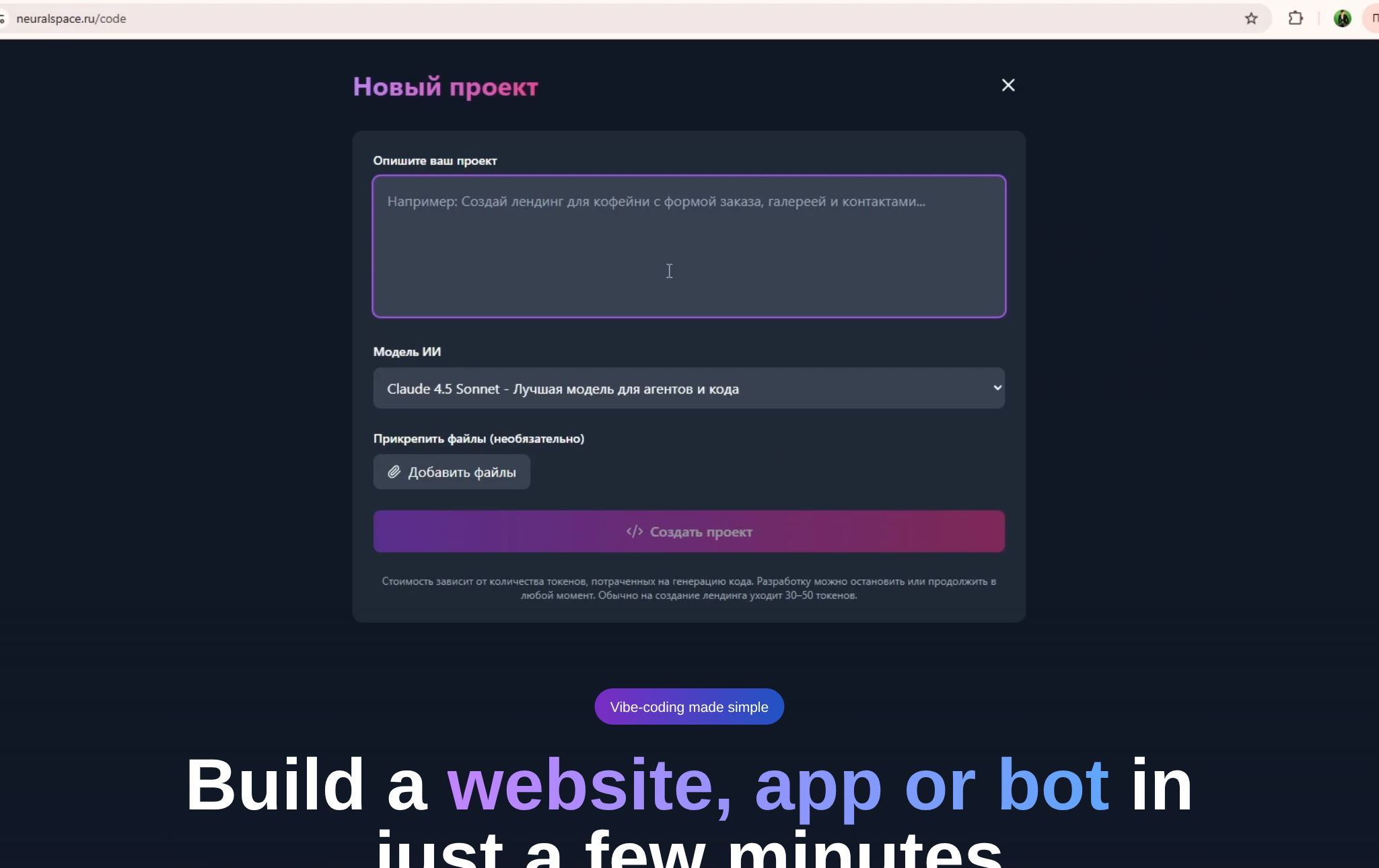
- Click “New project” and describe the result in ordinary words. A working example: “a photo studio website: header with the name, a portfolio of 6 works, a pricing block, a booking form, light theme.” The more specific your list of blocks and requirements, the fewer edits after the first version.
- If you do not want to start from a blank page, pick a ready-made starter prompt template — one click fills the field.
- Choose a model. DeepSeek V4.1 Flash sits first in the list — it is the starter model, available immediately and with the lowest launch threshold. For complex logic and tidy layouts there is GLM-5.3, GPT-6, Grok 4.7, Kimi K3 and the premium Claude models.
- Attach files if needed: a screenshot of an interface you like, or a sketch of the structure — the agent takes them into account.
- Click “Create project”. The agent creates the files, starts the app and shows it in the chat. From there, changes are just words: “make the header dark”, “add a request form”, “remove the extra block”.
One separate setting is the model’s reasoning level (low / medium / high / xhigh). For typical pages and small edits, low is enough: answers come faster and cost less. Switch to high when the project is large and the model has to keep many files in mind at once.
The project lives at a link
The key trait of the online approach: the result does not sit in an archive on your computer — it exists at a public address. A couple of minutes after launch the project gets a link like project-name.app.neuralspace.pro, with HTTPS, reachable from any device. The project header has “Open site” and “Share site” buttons — the latter copies the link (on a phone it opens the system share sheet).
What that gives you in practice: showing a prototype to a client is a chat message instead of an archive plus “install Node.js and run npm start”. A teammate opens the same link and sees exactly what you built. If the project needs its own domain, you can bind it and enable HTTPS — the service walks you through the steps.
One quirk people often ask about: right after creation, the project may answer with a 502 error. That is normal — the app inside is still starting up, usually a minute or two. The “Open site” button checks the project’s state itself and explains what is happening, so you will not be staring at an empty tab.
Backups, rollback and the archive
Working in a browser does not mean being locked into the service. The project has smart backups, and you can roll back to a stable version in one click — handy when a fresh edit breaks something and you want yesterday’s state without rebuilding everything. The project archive downloads at any time: you can take the code, inspect it locally or deploy it on your own server.
What is great online — and where the catch is
This mode shines for landing pages and portfolio sites, simple web apps, bots, admin panels and browser mini-games — anything you can describe as a list of screens and features. It is also handy that edits can be made from any computer: open the browser and continue.
Honest limitations. Long multi-hour sessions on a budget model can stumble — for complex logic, switch to a stronger one. It is worth at least skimming the code the agent writes: for a prototype or an internal tool that is fine, but before production a large system deserves a developer’s review. And yes, all of this works while you have internet.
What it costs
There is no subscription: you pay in tokens for the agent’s work. After each reply you can see how many tokens that message took, and the balance updates immediately. New users get starter tokens — enough to assemble a first project. Project hosting on the platform is billed separately, with no mandatory monthly fee: do not need the project — do not pay for it.
Frequently asked questions
Do I need to install anything for vibe coding online?
No. All you need is a browser and an internet connection: the editor, the development environment, Node.js and servers are all on the platform side. Open the “Code” section and create a project.
Where does the project live and how do I show it to others?
The project gets a public HTTPS address like project-name.app.neuralspace.pro. The “Share site” button copies the link — send it to anyone; the recipient does not need to install anything. If you want, the project can be bound to your own domain.
Can I take the project off the platform?
Yes. The project archive downloads at any time, plus there are backups and one-click rollback to a stable version. The browser is a workspace, not a lock.
Which model should I start with?
Start with DeepSeek V4.1 Flash — the default one: it is available immediately and suits typical projects. When the task gets harder, switch to GLM-5.3, GPT-6, Grok 4.7, Kimi K3 or Claude — switching happens in the same project window.