Upscale Video Online Free: AI Upscaler in Your Browser

You can now upscale video online for free right in your browser: the AI Video/Image Upscaler (free) tool has arrived in the Video section. It enlarges video and images 2x or 4x with the Real-ESRGAN neural network, runs entirely on your own device and spends no tokens.
Why it is free
Regular upscalers process your file on their own servers and charge money or tokens for it. Here the Real-ESRGAN model is loaded into the browser and runs on your computer's graphics card (WebGPU, with the processor as a fallback). The server only serves the tool's code and the model weights — it has nothing to compute, so no tokens are charged and the number of runs is unlimited.
Privacy comes for free too: your video and images never leave your computer. That matters when you upscale personal clips, work materials or client files.
How to upscale video online: step by step
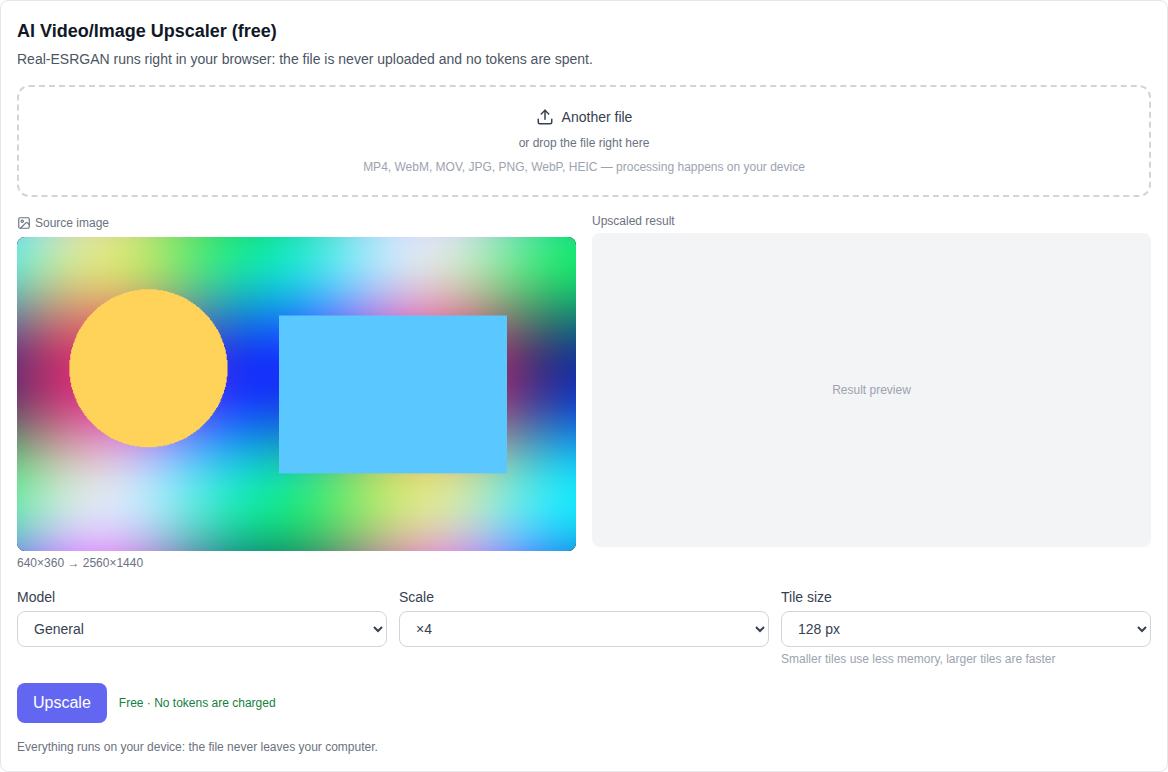
- Open the Video section and pick AI Video/Image Upscaler (free) in the model list — it sits at the very bottom, next to the other free tools.
- Upload a video or an image: click the picker or drop the file right into it.
- Choose the model: General for photos and ordinary video, Anime for drawings and anime.
- Choose the scale: 2x or 4x.
- Optionally change the tile size: smaller tiles use less memory, larger tiles are faster.
- Press "Upscale" and wait for it to finish. You can preview the result on the page and download it as a file.
What the upscaler can do
- Video and images. One tool for both kinds of files.
- 2x and 4x upscaling. The neural network draws in detail instead of just stretching pixels.
- Two models. General for photos and ordinary video, Anime for drawings and anime.
- Audio is kept. The finished video is assembled at the original frame rate, and the source audio track is carried over.
- Images come out as PNG. An upscaled image is downloaded as a ready PNG file.
Which files work
Video: MP4, WebM, MOV and other common formats. Images: JPG, PNG, WebP, HEIC and more. Video needs a recent Chrome or Edge — frames are processed through WebCodecs, and in an unsuitable browser the tool warns you honestly instead of failing with a cryptic error.
4x upscaling also quadruples the frame size, so for very large files the tool may ask you to pick 2x — that is a browser safety limit, not a paid restriction.
What to know before the first run
- First run. The browser downloads the model weights once and caches them — later runs start immediately.
- Time. An image is quick; video is processed frame by frame, so a short clip may take a few minutes. The progress bar shows where it is.
- Memory. Everything runs on your device, so on a weaker computer pick 2x and a smaller tile size.
Who it is for
The upscaler helps when the source is weak but you need a big frame: raising the resolution of an old clip, preparing video for a large screen, enlarging an image for print or a banner, or pulling detail out of a phone shot. If the file also needs its background removed, the same section has video background remover, depth map and text to speech — all of them run right in the browser too.
Frequently asked questions
Is it really free? Yes. No tokens are charged for this tool and it has no paid API — your computer does the work.
Is my file uploaded? No. Video and images never leave your device; only the tool's code and the model weights come from the server.
Can I upscale video with sound? Yes, the source audio track is carried over to the result and the frame rate stays the same.
Why does video take so long? Frames are processed one by one on your device. A short clip usually takes a few minutes, and the progress bar shows where it is.