Text to Speech with Intonation: Turn Text into Lifelike Speech
You can now turn text into a lifelike voice, not a robot one, in the Audio section: the Text to Speech with Intonation tool works there. You type the text, mark the intonation with tags in square brackets — and get a ready MP3 you can download and drop into a video, podcast or presentation.
How it works
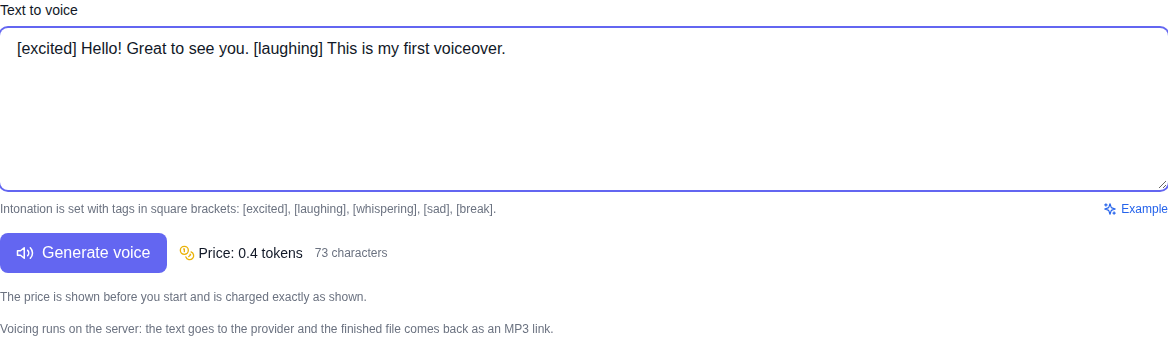
Paste your text into the input field and mark the intonation right in it: a tag in square brackets goes before the phrase it colors. For example: [excited] Hello! Great to see you. [laughing] This is my first voiceover. The voice reads the first phrase with excitement and the second one with a laugh.
The price is shown next to the button before you start and is charged exactly as written. If the voicing fails, no tokens are charged.
Which intonation tags exist
Emotions: [happy], [sad], [angry], [excited], [calm], [confident], [surprised], [grateful], [empathetic] — more than 60 expressions in total. Besides emotions there are sounds and manners of speech: [laughing] — laughter, [whispering] — a whisper, [sighing] — a sigh, [emphasis] — stress on a word, [break] — a short pause, [long-break] — a long pause.
You can strengthen an emotion with words: [very excited], [slightly sad]. Several tags in a row stack: [sad][whispering] — a sad whisper. Text without tags is read in a flat neutral tone.
How to voice your text: step by step
- Open the Audio section and pick Text to Speech with Intonation in the model list.
- Paste your text — up to 5000 characters. The Example button inserts a ready sample with tags to start from.
- Put the intonation tags before the phrases you want to color — like in the example above.
- Check the price next to the button: it is shown before you start and is charged exactly as shown.
- Press the generate button and wait for it to finish.
- Listen to the result right on the page and download the MP3 with one button.
What you get
- A ready MP3 — you can listen to the file right on the page and download it with a button.
- Lifelike intonation — pauses, stresses and emotions are read the way you marked them.
- An honest price — the amount is visible before you start; if it fails, no tokens are charged.
- Up to 5000 characters at once — a short phrase or a whole paragraph.
Who it is for
The tool helps everyone who voices text: a voiceover with the right mood for videos and clips, calm reading for presentations and courses without a studio, a living line for posts and stories. If you need a free option without tokens, the same Audio section has text to speech in the browser — it runs right on your computer.
Frequently asked questions
How much does it cost? The price is calculated from the length of the text and shown next to the button before you start. Exactly the shown amount is charged.
What if the voicing fails? No tokens are charged — you can try again.
What is the maximum text? Up to 5000 characters per voicing.
Do I need to install anything? No. The voicing runs on the server and the result comes back as an MP3 link — it works in a regular browser.
Is text without tags voiced too? Yes, in a flat neutral tone. Tags are there to add emotions and pauses.