Text to speech: turn any text into natural-sounding voice

Text to speech is a tab in the Video avatars section that turns written text into natural speech: you paste an article, a script, a letter or a single line, pick a voice from the catalog and get a ready audio file you can play and download right away. There is no microphone recording and no editing — the voice is synthesized from your text, while the language, pace and pauses are set in the interface. Below we cover how to choose a voice and language, how to prepare text so it sounds alive, where this comes in handy and what a run costs. The tool lives in the Text to speech tab.
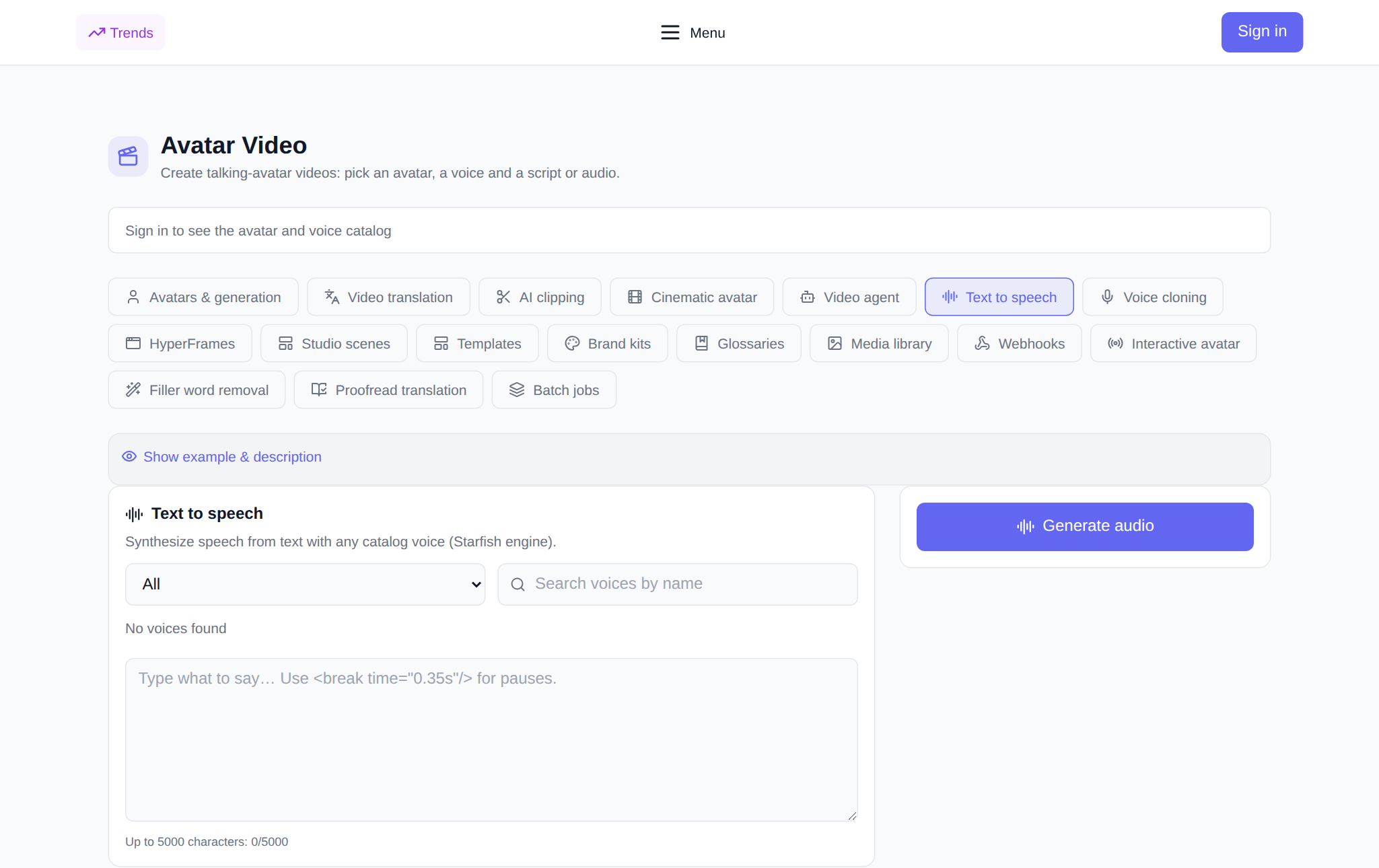
What text to speech does
The tab takes text and returns audio. You pick a voice from the catalog, paste up to 5,000 characters, optionally change the speed and hit “Generate audio” — synthesis runs synchronously and the file shows up in your history almost immediately. You can play the result right on the page and download it with one button. It is the fastest way to get a voice without a studio, a recorder or retakes: if the pace is off, change the speed and generate again.
Why you need it
- Audio versions of articles and blogs: the same text, but in headphones for people on the move.
- Video scripts: a draft voice-over to hear the rhythm and length before you shoot.
- Letters, newsletters, announcements: a spoken message feels warmer than dry text.
- Podcasts and intros: a jingle lead-in, an episode opener, a short insert.
- Auto-attendants and tutorials: a phone greeting, voice-over for slides and courses.
- A warm-up for cloning: hear how the text sounds before voicing it in your own voice.
How to start on the site: step by step
- Open the Text to speech tab in the Video avatars section and sign in — the voice catalog loads after login.
- Pick a language in the filter and, if needed, find a voice by name in the search box.
- Preview a voice with the button next to its name: the sample is prepared and cached on the server, so replaying it is instant.
- Paste your text into the field — up to 5,000 characters. Add pauses with the
<break time="0.35s"/>tag. - Set the speed from 0.5 to 2.0 — the default is 1.
- Check the price in tokens: it is shown before launch and depends on the length of the text.
- Press “Generate audio”. The finished file appears in the “My audio” block, where you can play and download it.
How to choose a voice and language
The voice catalog is filtered by language and searchable by name, and every voice shows its language and gender. The filter lists around thirty languages: English, Russian, Arabic, Chinese, Japanese, Korean, German, French, Spanish, Hindi, Vietnamese and more. A practical order: pick the language first, then preview two or three voices and keep the one that fits the tone — calm for instructions, energetic for ads, warm for a letter. If the voice-over is for an avatar video, choose a voice that sits well with the avatar's speaking pace.
How to prepare text so it sounds alive
Synthesis reads exactly what you wrote, so it pays to tidy the text a little. Write in short sentences and use punctuation — it sets the pauses. For an extra pause, insert the <break time="0.35s"/> tag. Numbers, abbreviations and acronyms are best written out as words when you need unambiguous pronunciation. Check names, brands and terms on a short fragment before voicing the whole text. Match the speed to the job: 0.9–1.0 for instructions and training, 1.1–1.2 for ads and dynamic inserts.
Where text to speech comes in handy
- Content: an audio version of an article, a long-read voice-over, a voice for a carousel.
- Video: a draft track for a clip with or without an avatar.
- Learning: voice-over for slides, quizzes and short lessons.
- Business: a phone greeting, an auto-attendant, a spoken announcement.
- Personal: a spoken greeting, an audio letter, a note to yourself.
How it pairs with other tabs in the section
Text to speech works well in a pipeline. A finished voice is easy to drop into an avatar video in the Avatars & generation tab, and the clip can then be translated into other languages in Video translation. If you need your own timbre, first create a clone in Voice cloning and voice with it. And if the text came from someone else's recording, Filler word removal and Translation proofreading will help.
What a run costs
The platform is billed in tokens, with no subscription: new users receive starter tokens at sign-up, and the balance can then be topped up by any amount. The price of a voice-over is based on the length of the text — roughly the seconds of the resulting audio, with a minimum charge per request — and is shown in the interface before you press the button. If synthesis fails, the tokens are returned to your balance. The exact amount is visible before launch, so spending stays predictable.
FAQ
Can I voice text without recording with a microphone?
Yes. No microphone is needed: you paste the text, pick a voice from the catalog and get a ready audio file. Recording is only required if you want to voice in your own voice — then create a clone in the Voice cloning tab first.
How many languages can I voice in?
The catalog filter lists around thirty languages, including English, Russian, Arabic, Chinese, Japanese, German, French, Spanish and Hindi. Pick the language, preview the voices and keep the one that fits the tone.
How many characters can I voice at once?
Up to 5,000 characters per request. A long text is best split into parts and voiced piece by piece, then stitched together — that also makes individual paragraphs easier to fix.
How do I add a pause in the speech?
Use punctuation — it sets natural pauses. For an extra pause, insert the <break time="0.35s"/> tag into the text with the duration you need.