Kling neural network: text-to-video, photo animation and when to choose it
Kling is a family of video models from Kuaishou that turns a text description or a still photo into a short clip, can copy motion from a reference video, edit existing footage and build a talking character from a picture plus audio. On NeuralSpace every Kling version lives in the Video section, from the fast Kling 3.0 Turbo to the new Kling 4.0 with clips up to 30 seconds, multiple references and keyframes. This guide covers what Kling actually does, how to animate a photo, and which version to pick so you do not waste tokens.
What Kling can do
Kling is best known for text-to-video: describe a scene and the model invents the motion, the light and the camera work. But the toolkit is wider. In practice there are five jobs, and each one calls for a different mode:
- Text to video. The prompt describes what happens in the frame; the model builds a clip with moving objects, camera work and atmosphere.
- Photo animation. Upload a still and Kling adds motion: a person turns their head, a product rotates, the background comes alive. The scene is not invented from scratch — the model starts from your image.
- Motion Control. Movement is taken from a reference video and transferred onto your frame: a dance, a camera move, a gesture.
- Video editing. An existing clip can be changed with text — swap an element, adjust the style or a detail while keeping the motion.
- Talking avatar. A photo plus an audio track becomes a character that speaks the line.
So Kling is not a single "make a video" button but a set of modes. The most common beginner mistake is running a complex job in the wrong one.
Kling versions on NeuralSpace
All Kling models sit in one group inside the Video section. Pick by job:
- Kling 4.0 — the newest and most capable version: 3–30 second clips, 720p or 1080p, native audio. Reference mode accepts up to 10 images, 5 videos, 7 elements and 3 voices (15 media references in total), while keyframe mode takes a first frame, a last frame and up to 8 intermediate frames. Choose it for one long continuous shot that must keep several characters, props or a precise composition.
- Kling O3 — the image-quality flagship: text or image input, 720p, 1080p or 4K, native audio. For hero shots that need maximum detail.
- Kling 3.0 — the universal workhorse: 3–15 seconds, standard, pro and 4K modes, an audio toggle and a multi-shot option. This is where most projects should start.
- Kling 3.0 Turbo — a faster option for drafts and idea iteration. Lower quality, but the idea → look → change loop is quicker.
- Kling O1 Image-to-Video — the simple way to animate one photo with few settings.
- Kling Motion Control (2.6 and 3.0) — transfer movement from a reference video onto a photo.
- Kling AI Avatar — a talking head from a photo and audio, in standard and pro modes.
- Kling Video-Edit — edit existing footage with text, in O3 Pro, O3 Standard and O1 variants.
How to animate a photo in Kling
Photo animation is the job most people come to Kling for. The flow is straightforward:
- Open Kling O1 Image-to-Video for a simple task, or Kling 3.0 when you need audio, pro mode and more controls.
- Upload a clean photo: one subject in focus, even light, no collage and no heavily blurred background. The cleaner the source, the more stable the face and details.
- Describe only the movement — what is missing from the still. For a portrait: "the person slowly turns their head, looks into the camera, a slight smile, the camera stays still". For a product: "the bottle rotates slowly on a pedestal, soft light slides across the glass".
- Start with 3–5 seconds at 720p. That is enough to see whether the face holds and whether hands or background drift.
- If the motion works, re-run at 1080p or make it longer — but only after a successful short test.
Do not ask for several actions at once on a human photo: "turns, raises a hand, winks and walks away" almost always produces artefacts. One motion per clip is the predictable path. If you need movement copied from a video rather than free animation, use Motion Control: the pose and trajectory come from the reference, and the result is noticeably more precise.
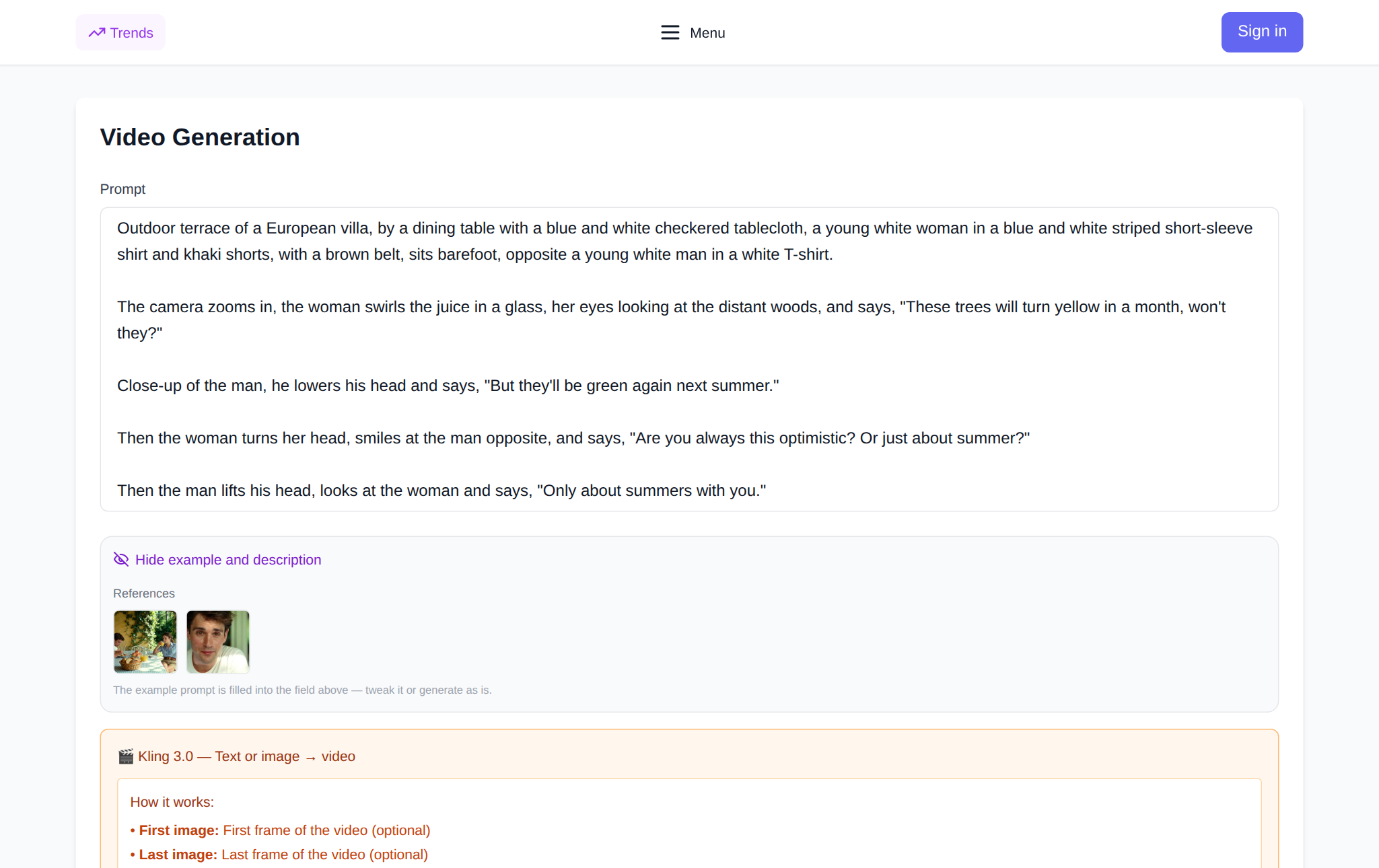
The text-to-video prompt formula
A good Kling prompt is not a pile of adjectives but a technical description of the shot. The working formula: subject + action + environment + camera + light + style. For example: "an older craftsman in an apron polishes a wooden board in a small workshop, slow hand movements, the camera pushes in from the side, warm window light, documentary style". That gives the model everything it needs: who is in frame, what they do, where, how it is shot, what lights it and in what manner.
A second example, for a product: "a matte perfume bottle on wet stone, drops slide down slowly, the camera arcs around it, cool backlight, premium commercial look". Compare that with "a beautiful video with perfume" — the second prompt returns a random result because it has no motion, no camera and no light.
Kling 3.0 has a multi-shot mode: you can describe two or three short beats inside one clip. With Kling 4.0 at 15–30 seconds, split the scene into meaningful segments and set keyframes, so the model does not lose the composition between the beginning and the end.
Motion Control, AI Avatar and Video-Edit
Motion Control is not "photo animation" but choreography transfer. If you have a video of someone dancing, walking or gesturing and need your character to repeat exactly that, this mode saves dozens of attempts. The reference sets the duration and the character of the movement.
Kling AI Avatar solves a different problem: photo plus voice recording equals a talking character. It is built for explainer videos, greetings and a short line delivered by a hero. For dynamic scenes a regular video model is the better fit.
Video-Edit helps when the clip already exists but a detail, element or style must change without reshooting everything. It is cheaper and faster than generating a scene from scratch, and it preserves the original motion.
When to choose Kling over other video models
Kling's strengths are camera control, work with photos and references, the Motion Control and avatar modes, and — in version 4.0 — long clips up to 30 seconds. It is not a universal replacement for every model. Use these guidelines:
- One long continuous shot of 15–30 seconds with several characters, props or voices and a precise composition — Kling 4.0.
- A cinematic 3–15 second clip with camera movement and sound — Kling 3.0 or O3. O3 when 4K matters.
- Many quick ideas to compare — Kling 3.0 Turbo; for the roughest drafts, fast models such as Grok Imagine also work.
- One photo to animate — Kling O1 Image-to-Video or Wan 2.6: fewer settings and less risk of wasting tokens.
- Movement copied from a video — Kling Motion Control.
- A talking presenter — Kling AI Avatar.
- Maximum realism in an everyday scene and synchronized sound — look at Veo 3.1.
- A story-driven clip with characters and cameos — Sora 2.
- Fast short scenes with style references — Seedance 2.5.
- Several references plus audio — Vidu Q4.
These are guidelines, not rigid rules: models differ in queues, prices and behaviour on a specific prompt. The honest way to choose is to generate the same scene on two models at the minimum duration and compare. Starter tokens for a new account are usually enough for a couple of such tests.
What the site data shows
Across 181 successfully completed Kling 3.0 clips over 90 days (27 July – 25 October 2026), the median time from launch to a finished file was 2 minutes 5 seconds, and 90% finished within 3 minutes 32 seconds. These are anonymized NeuralSpace aggregates with no user or prompt data.
In the last 30 days (25 September – 25 October 2026) the Kling family had 223 runs, and 194 of them were Kling 3.0. The universal version covers most jobs, while 4.0, Turbo, Video-Edit and Motion Control are picked for specific scenarios. That matches the logic above: test the idea on 3.0 first, then run a long shot or a motion transfer in the dedicated mode.
Cost and how not to waste tokens
NeuralSpace has no subscription and no free generations: new accounts receive starter tokens, after that you pay in tokens for each run. The cost of the selected model, duration and resolution is shown in the form before you submit, so there are no balance surprises. Kling 4.0 is usually more expensive than Kling 3.0 — it is longer and does more.
- Start with 3–5 seconds at 720p: that is the cheapest way to learn whether the idea works.
- Use Turbo for drafts and 3.0 or O3 for the final take.
- Do not change five prompt parameters at once: edit one at a time, otherwise you cannot tell what made the difference.
- For a series of shots with one hero, use a reference or keyframes instead of generating "from memory".
- Choose 30 seconds only when the scene truly needs a long take; a 5-second test is almost always cheaper.
Common mistakes
- Packing a whole story into one 5-second clip. A plot needs a series of short scenes.
- Writing "beautiful, atmospheric, expensive" instead of a concrete action and camera.
- Uploading a collage, a low-quality screenshot or a group photo and expecting a stable face.
- Confusing Motion Control with ordinary photo animation: in the first case the reference dictates the movement.
- Expecting perfect on-screen text. Models often distort lettering — add it in an editor instead.
- Judging the audio from the first take: if an exact phrase matters, check the audio after generation.
FAQ
What kind of neural network is Kling?
A family of video models from Kuaishou. It makes clips from text and photos, transfers motion from a reference video, edits existing clips and creates talking characters. On NeuralSpace all versions are collected in the Video section.
Can Kling animate a photo?
Yes. Use Kling O1 Image-to-Video for a simple job, or Kling 3.0 and 4.0 with an uploaded image for more control. If the movement must come from a video, choose Motion Control.
How is Kling different from Seedance?
Kling is stronger at camera control, motion transfer, references and long shots up to 30 seconds in version 4.0. Seedance is often chosen for fast short scenes and style references. Compare them on the same prompt at the minimum duration.
Are there free generations?
There are no free generations. New accounts get starter tokens for their first tests; after that you pay in tokens for each run, with no subscription. The price is shown before generation.