Frame Interpolation Online Free: Smoother Video and Slow Motion
Frame interpolation online free is now available right in your browser: the Frame Interpolation / Smooth Slow Motion (free) tool lives in the Video section. It makes in-between frames between the ones already shot, so your video looks smoother — or slows down without stutter. No tokens are charged.
What the tool does
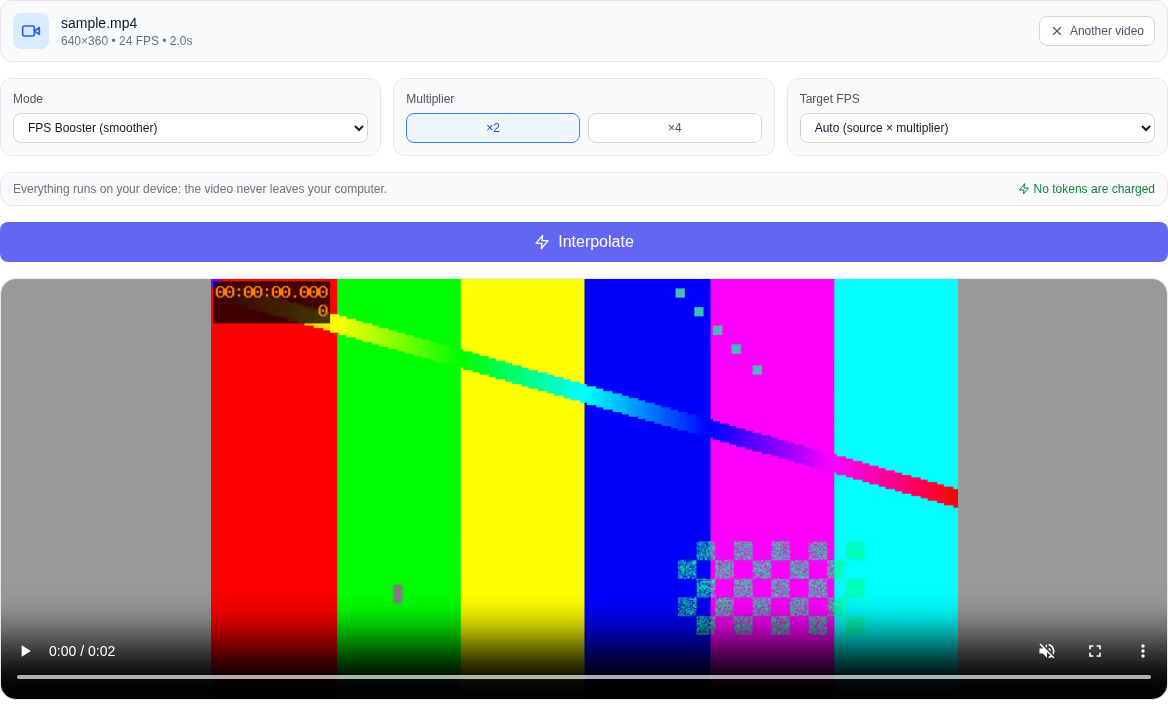
- FPS Booster (smoother) — the frame rate of the video grows 2× or 4×. The clip plays at normal speed, but the motion looks distinctly softer.
- Smooth Slow Motion — the video is slowed exactly 2× or 4×, and the smoothness is kept: new frames are added in between, so the picture does not judder.
Pick the multiplier with the ×2 or ×4 buttons. For the FPS boost you can also set a target rate: auto, 30, 48, 60 or 120 frames per second.
How it differs from ordinary slow motion
Any player or editor can stretch a video over time — but then the frames are simply duplicated and the motion turns choppy. Here new frames are synthesised between the neighbouring ones: the tool estimates how the pixels moved from frame to frame and draws the in-between position. The same footage comes out as the same scene, only at a higher frame rate.
How to boost FPS or make slow motion: step by step
- Open the Video section and pick Frame Interpolation / Smooth Slow Motion (free) in the model list — it sits at the very bottom, next to the other free tools.
- Upload a video: click the picker or drop the file right into it. MP4, WebM, MOV and other common formats are supported.
- Choose the mode: FPS Booster or Smooth Slow Motion, and the multiplier ×2 or ×4.
- For a boost you can optionally set the target rate: auto, 30, 48, 60 or 120 FPS.
- Press "Interpolate" and wait for it to finish. The progress shows how many frames have been assembled.
- Watch the result right on the page and download the finished video.
What happens to audio and duration
With the FPS boost the video duration stays the same and the original audio is kept. In Slow Motion the video is slowed exactly by the chosen factor — 2× or 4× — and the audio is slowed along with it. If the browser cannot re-encode the audio into a suitable container, the tool will say so honestly: better to drop the sound than to hand you a broken file.
The frame rate comes from the video itself
The tool reads the frame rate of the video track instead of guessing it from the duration of the whole file. So a file whose audio track is longer than the video, and a clip with a variable frame rate, are both read correctly: the FPS boost neither speeds the video up nor slows it down, and Slow Motion stretches it by exactly the right factor.
Everything runs on your device
The video is never uploaded: the frames are decoded and reassembled right in the browser, and the in-between frames are computed by your computer's graphics chip (or the processor when there is none). The tool has no paid API, charges no tokens and has no limit on the number of runs. That matters when you work with personal footage, client files or unpublished content.
What the tool does not do
Honestly about the limits. This is motion interpolation, not a high-speed camera: details that were not in the source frames are not recovered. In scenes with fast motion, transparent objects, heavy blur or hard cuts the in-between frame may be imprecise. It is not neural-network "super enhancement" and not an upscale — the tool does not increase the video resolution; for that there is the AI upscaler. It also does not remove a background or build a depth map: the Video section has a background remover and a depth map for that.
Which browser works
The processing relies on a modern browser engine, so the tool works best in Chrome and Edge. If the browser does not support local video processing, the tool will say so honestly. A very large source resolution may also not fit in the browser's memory — then use a smaller file.
Frequently asked questions
Is it really free? Yes. No tokens are charged for this tool and it has no paid API — your computer does the work.
Is my video uploaded? No. The source file and the result stay on your device.
Is it a neural network? No. It is motion interpolation: the position of pixels between frames is estimated with optical flow, not by a neural model.
Will the video get sharper? No. The tool improves motion smoothness, not resolution or detail.
Can I both speed up and slow down the same video? One mode is chosen per run. If you need both results, process the tool twice.
Why does the processing take time? Frames are computed one by one on your device: a short clip may take a few seconds, a long one takes longer.