Brand kits: one brand style for all your videos
Brand kits is a tab of the Avatar Video section that gathers your brand style from a website and applies it to videos: you give a public site address, the service pulls the logo, colors and fonts on its own, and the chosen set styles your video in the Video agent. Instead of rebuilding the look for every clip, you set it once — and the videos come out looking like part of one brand. Below: what a brand kit is, how to import one, where to pick it and what it costs.
What a brand kit is
A brand kit is a set of a site's brand attributes: the logo, a color palette and fonts. It is not assembled by hand — the service parses a public page: you provide the address and it collects the styling elements into one set. Later you pick that set during generation, and the video is styled in a recognisable way: the same shades, the same mark, the same typography. A kit does not invent the video and does not write your script — it is only responsible for the branded look.
How to import a brand kit
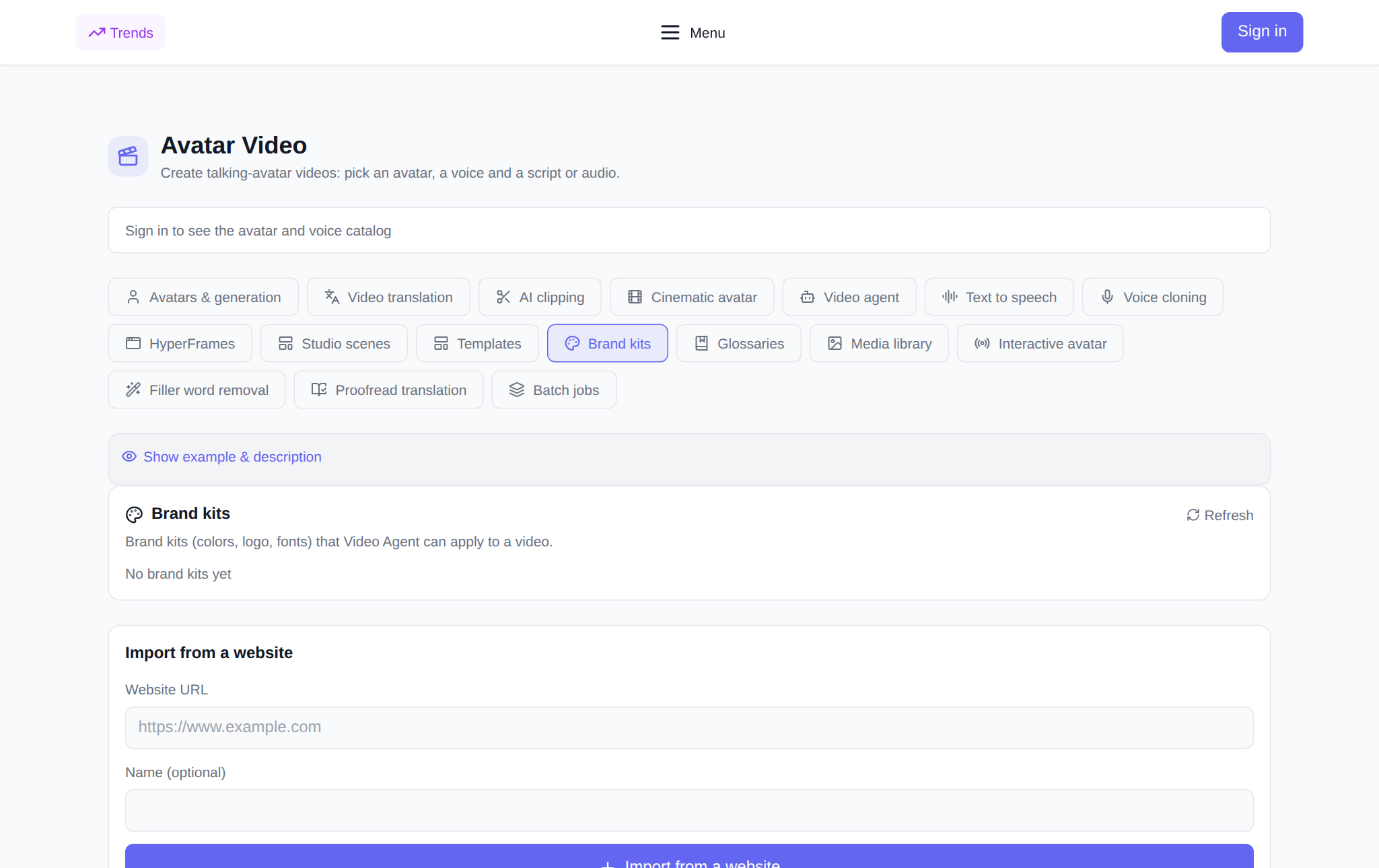
Open the Brand kits tab in the Avatar Video section. You do not upload any files — the import runs straight from a website:
- In the Import from a website block, enter the site address — a public page such as https://www.example.com.
- Optionally add a clear name so kits are easy to tell apart.
- Click Import from a website: the kit is created right away and its assets keep loading in the background, so you do not have to sit on the page.
- The list refreshes itself in a few seconds; you can also re-read it with the Refresh button. Once the status turns Ready, the kit can be applied.
If the address is not reachable from the outside, the page is password-protected or the asset collection fails, the status shows Import error. An unwanted kit is removed with the bin icon on its card — the service asks for confirmation so you do not delete it by accident.
What the kit card shows
Each kit card shows the name, the logo, the color palette and the status: Loading, Ready or Import error. Colors are displayed as swatches, so you can see at a glance which shades your videos will get. If the result is off, delete the kit and import it again from a more suitable page — the site homepage, for example.
Where the brand kit is applied
Today kits are applied in the Video agent, the mode where a video is built from a single text description. The form has a Brand kit field that defaults to None: pick your set and the agent styles the scene in your brand look. You can additionally tune the scene with the Style field, but the logo, colors and fonts are exactly what the brand kit handles.
How to build a video in your brand style: step by step
- Import a kit in the Brand kits tab and wait for the Ready status.
- Switch to the Video agent tab and describe the video: what to show, what to say, which format you need.
- In the Brand kit field pick your set — or leave None.
- Optionally set the avatar, voice, style and frame orientation.
- Check the token price: it is shown before you start.
- Start the generation and wait for the Completed status — the result appears in the history, where you can download it.
What it costs
Importing, storing and deleting brand kits does not spend tokens — this is styling, not generation. You pay only for the video itself: the token price is shown before launch, and if a generation fails, the charge is returned automatically. No subscription is needed: new users get starting tokens, then you top up the balance with any amount.
Pairs well with brand kits
- Glossaries — set the pronunciation of terms and names in the voice-over.
- Templates — provide a ready video structure to drop your data into.
- Media library — stores your uploaded photos, video and audio for reuse in new work.
Frequently asked questions
Do I need to upload the logo, colors and fonts manually?
No. The kit is collected automatically from a public website — you only provide its address. Styling files are not uploaded by hand in this tool.
Can I keep several brand kits?
Yes. Create as many sets as you have brands or projects — for example, one for the main site and one for a partner line. In the Video agent you pick one kit per generation, or None.
What if the status says Import error?
Check that the address starts with https:// and opens without a login, then try the site homepage. If that does not help, delete the kit and import it again.
Is importing a brand kit paid?
Importing, storing and deleting kits does not spend tokens. Tokens are only used for video generation, and its price is shown before launch; there is no subscription, and new users get starting tokens.