Batch jobs: how to launch 100 videos with a single task
Batch jobs is a tab in the Avatar Video section that launches many clips with a single task: you fill in a list of items, press one button, and up to 100 videos, translations or lip-syncs go into work at once. Instead of repeating the same script a hundred times in single mode, you assemble a batch, see the total price before launch and then collect the results from the history. Below: what the tool is, who it saves hours for, how to fill a batch step by step and what happens to the items that fail.
What it is and when you need it
Single runs are fine when there is one clip. But as soon as the task repeats — ten avatar greetings for different clients, a series of training videos, one webinar translated into five languages — the routine starts: fill the form, wait, download, fill it again. Batch jobs remove exactly that loop. One request, one list, one Start batch button — and every item is processed in parallel on the service side.
Typical scenarios: mass personalisation (one video per client or employee), a series of short clips from a single template, translating one source into several languages at once, lip-sync — laying ready-made audio over a video. If you make more than three similar clips at a time, a batch is almost always faster and handier.
How big video is on the platform shows in its log: over 30 days (2026-09-04 – 2026-10-04) 12,689 generations were started, 2,334 of them videos — the second-biggest format after images (9,907) and tracks (448); production DB aggregates, source: server/seo/benchmarkData.json. The more clips you need on the way out, the more a batch launch pays off.
Three batch types
The Batch type dropdown has three options, and each has its own item.
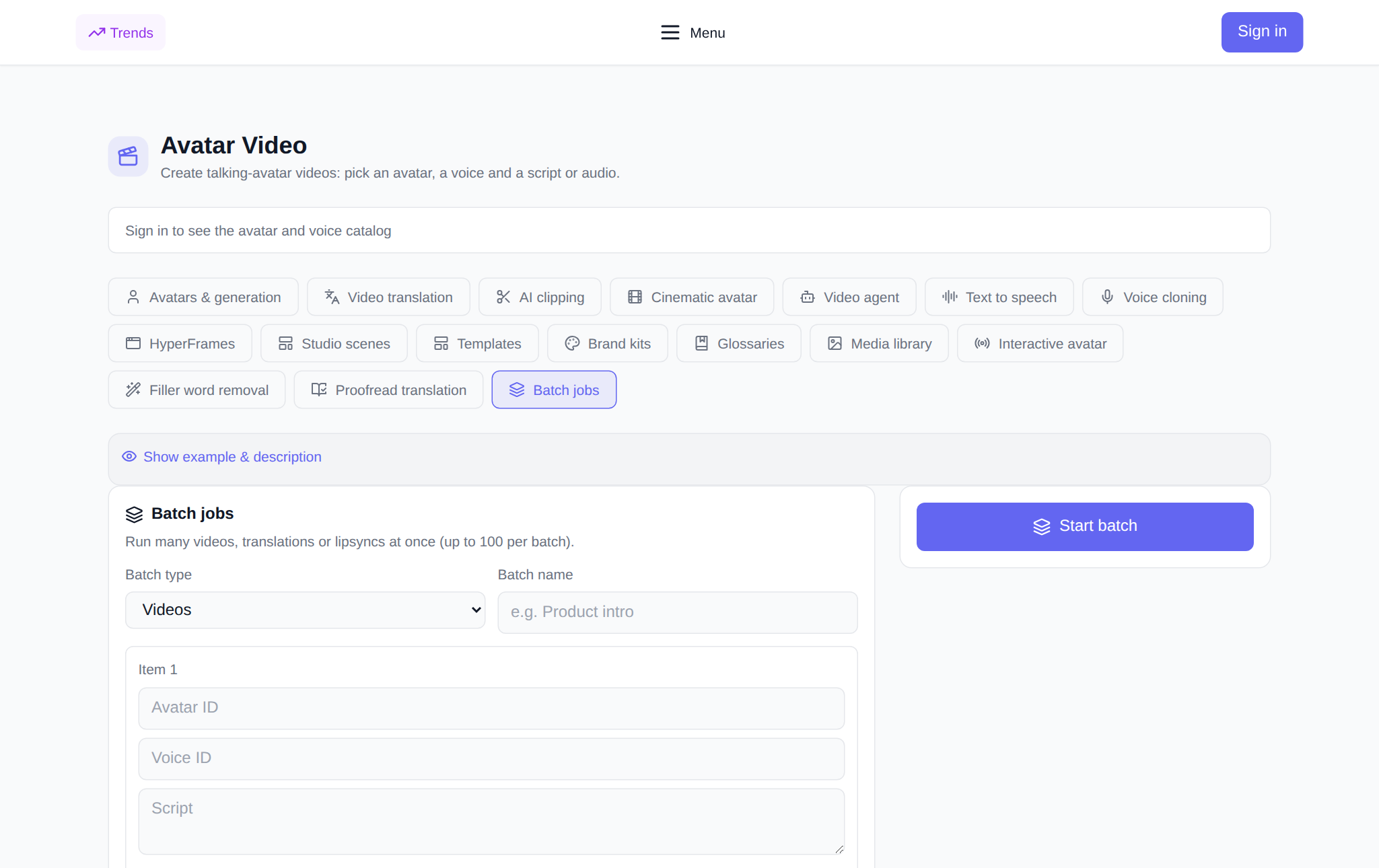
- Videos — a talking avatar. An item is an avatar ID, a voice ID and a script. Next to the voice field there is a preview button: you can hear the voice before generating and not launch the batch blind.
- Translations — translating a finished video. An item is a source link and a comma-separated list of languages. An important detail: one item with several languages expands into an item per language, and the limit of 100 counts the expanded ones. So five clips in five languages is already 25 items.
- Lip-syncs — lip synchronisation. An item is a video link and an audio link: the service lays your voiceover over the picture.
Empty items do not go into the batch and do not count in the price — you can safely leave extra rows unfilled.
How to launch a batch step by step
- Open the Batch jobs tab in the Avatar Video section.
- Pick the batch type and, if you like, set a name — it makes the batch easy to find in the history later.
- Fill in the items. For videos — avatar, voice, script; for translation — the video link and languages; for lip-sync — video and audio. The Add item button adds a row, the bin removes an extra one.
- Check the price. It is the sum of the prices of the filled items at the same rates as a single run — a batch gives no discount, but it does not hide the cost either. The amount shown equals the charge.
- Press Start batch. The items go into work and the batch appears in the history with the Processing status.
A guest who presses start is asked to sign in — generation is available to authorised users only.
What the history shows and how to collect results
The My batches block is a log: name, type, number of items, tokens charged, status counters and the overall batch status. Inside a card every item opens separately: its status, a download button for the finished file and the error text if the item failed. The file is served by our server, so the result link does not go outside. The history refreshes itself while the batch is running — you do not have to keep the page open.
What it costs and what happens to failed items
No subscription: new users get starting tokens for their first tries, after which you pay in tokens per task. The batch price is the sum of the prices of the filled items, and it is visible before launch. Then comes the interesting part — settling to fact. Items that failed are not charged: once the batch finishes, the server settles the charge to fact and refunds the share for the failed items automatically. That matters because failures are not rare: over 90 days of platform statistics (2026-07-06 – 2026-10-04) the share of successful completions among mature models is 79.7–92.2% (Kling 3.0 — 298 of 374, Seedream 4.5 — 1,036 of 1,127, GPT Image 2 — 3,244 of 3,518; source: server/seo/benchmarkData.json). In a batch of 100 items a few failures are normal, and that is exactly why a refund per failed item is not a detail here but the heart of the mechanic.
The refund works even if you closed the page: batches are polled by a background process, and the price is settled to fact without your involvement. If an item turns out longer than the preliminary measurement, the difference is charged extra — but that too happens by fact, not by eye.
What to pair it with
- Avatars and generation — create the avatar and voice that will go into the batch.
- Video translation — a single translation when there is just one clip.
- Glossaries — so terms sound the same across batch translations.
- Media library — keep sources and results so you do not upload them again.
- Webhooks — get a notification on your own server when the batch is ready.
Frequently asked questions
How many clips can I launch in one batch?
Up to 100 items. For translations the limit counts expanded languages: one item with five languages takes five of the hundred slots.
Is a batch cheaper than single runs?
No, there is no volume discount: the price is the sum of item prices at the same rates. The saving here is in time and convenience, not in tokens.
What happens if some items fail?
Tokens for failed items are refunded automatically — the charge is settled to fact after the batch finishes, even if you have already closed the page.
Can I mix videos, translations and lip-syncs in one batch?
No, a batch has one type per run. If you need different types, create two batches: they run in parallel and do not interfere with each other.