Animate a photo with AI: from a still image to motion
Animating a photo with AI means turning one still image into a short moving clip: a person blinks or turns their head, water ripples, the camera slowly pushes in. Technically this is image-to-video: the model does not improve the shot, it fills in motion that was never there for a few seconds. On NeuralSpace it happens in the Video section in a few steps, and below we break down which model to choose, which photos animate well and how to describe motion in words so you do not have to redo the result.
What animating a photo means — and what it is not
Image-to-video takes a finished frame as a starting point and completes what follows: camera movement, facial expression, the motion of light and water. This is not restoration and not upscaling — those tools sharpen the still image itself but add no time. Animation works in time: the output is a short clip, usually 4 to 30 seconds depending on the model. Keep in mind the model invents what was not in the frame, so the cleaner and simpler the source, the more convincing the motion.
Which photos animate well
A simple rule applies: one clear subject in focus. A waist-up portrait, a single figure, a landscape with a distinct foreground, a product on a neutral background all animate predictably. Group shots taken from a distance and frames with several equally important subjects are the hardest: the model smears everyone at once. A creased, dark or very noisy source will still animate, but expect artefacts on the face. If the photo is old and damaged, run it through a restoration tool first and animate afterwards.
How to animate a photo on NeuralSpace, step by step
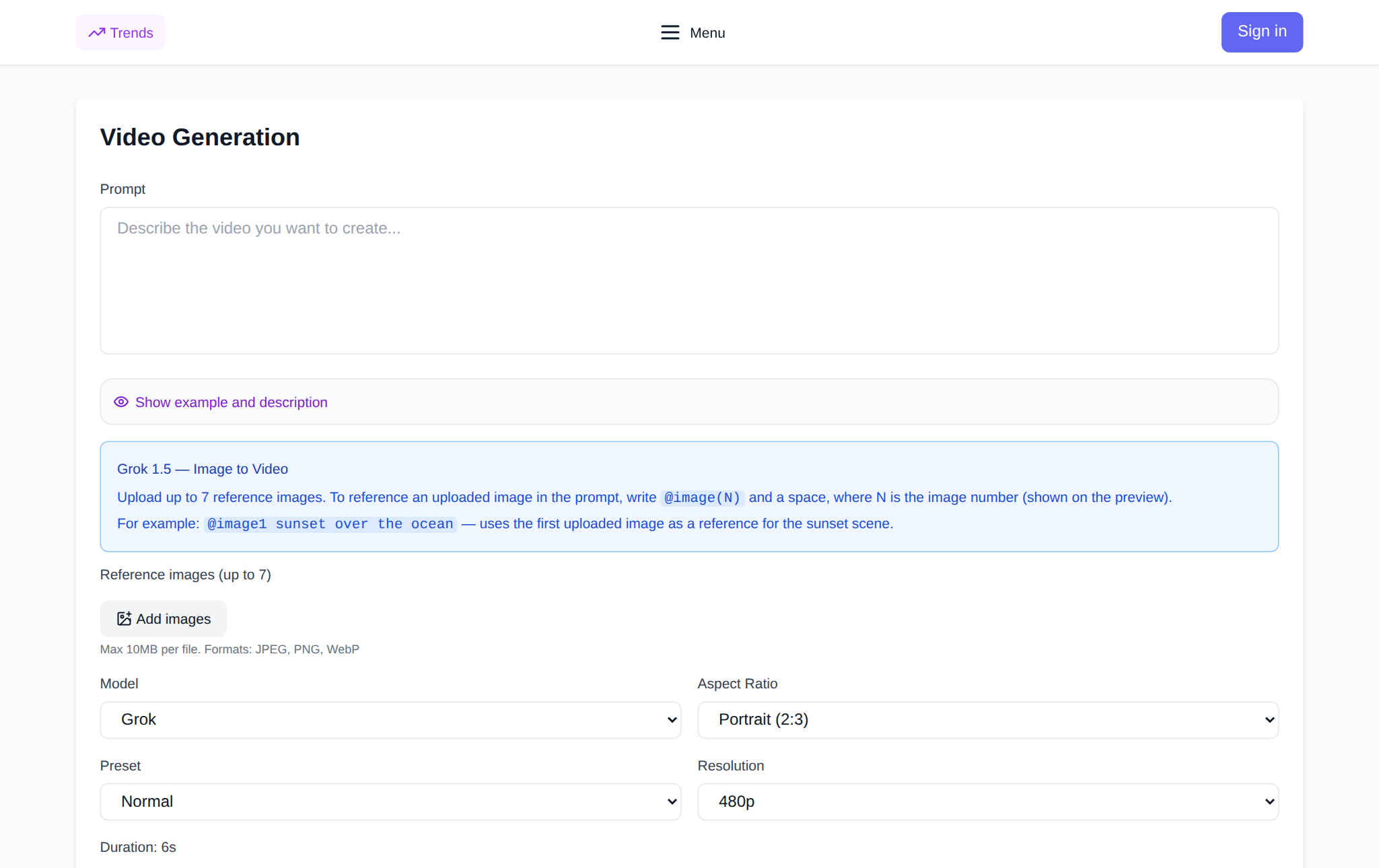
The whole path takes a couple of minutes. Open the Video section and pick an image-to-video model. Then click the image field, upload your photo, describe the motion you want in words, set duration and resolution if needed, and start the generation. The finished clip appears in your history, where you can download it. There is nothing to install or configure: it all runs in the browser.
Which model to choose for the task
The catalogue has several models that accept an image, and each has its own character:
- SeeDance 2.5 — the versatile option: it takes text, images and video, with 4–30 second clips. Great when you need predictable camera and subject motion.
- SeeDance V1.5 Pro — a simple path for one or two references, handy for a quick result.
- Kling O1 Image-to-Video — built specifically for images: convenient for animating portraits and objects.
- Kling 3.0 and Turbo — text and image-to-video runs (std / pro), Turbo is faster.
- VEO 3.1 and Sora 2 — strong general-purpose models for text-or-image to video.
- MiniMax H3 — supports video with sound, 4–15 seconds, up to 2K.
- HappyHorse 1.0 — image plus text, a dedicated image-to-video route.
If you need not just motion but a talking portrait, choose an image-plus-audio to talking-avatar model (Kling AI Avatar, OmniHuman 1.5), or Wan 2.2 Animate to transfer motion from a video reference.
How to describe motion in words
The prompt describes what is not in the photo, namely motion. Do not write "animate it" — be specific and give one action: "a light wind moves the hair, the camera slowly pushes in", "the water ripples, clouds drift from right to left", "the person calmly blinks and smiles slightly". The more movements you pack into one prompt, the choppier the result, so stick to one main action. It also helps to name the camera direction and speed directly.
What it costs
There is no subscription on NeuralSpace: new users receive starter tokens, and from then on generations are paid for with tokens. The price depends on the model, duration and resolution and is shown before launch, so you see the cost before the clip starts rendering. To avoid paying twice, change one parameter per run.
FAQ
Can I animate a photo for free?
There is no permanent free access to generation. A new user receives starter tokens to try the tool, and from then on usage is billed in tokens without a subscription.
Which model is best for a portrait?
Kling O1 Image-to-Video and SeeDance 2.5 are convenient for portraits — they hold the face well with gentle motion. For a talking portrait you need a dedicated image-plus-audio model.
How long is the result?
It depends on the model: SeeDance 2.5 gives 4 to 30 seconds, MiniMax H3 gives 4 to 15. A short clip animates more reliably than a long one.
Do I need editing skills?
No. You upload a photo, describe the motion and get a finished file. You can download the clip right after generation.