Flux 2 Pro: clean, controllable AI image generation

Flux 2 Pro is an AI image generator prized for doing exactly what it is told. It does not improvise on top of your prompt: the objects, colors and layout you describe are what land in the frame, drawn with crisp edges and steady geometry. Pick it for design work where the output has to match the plan on the first or second try.

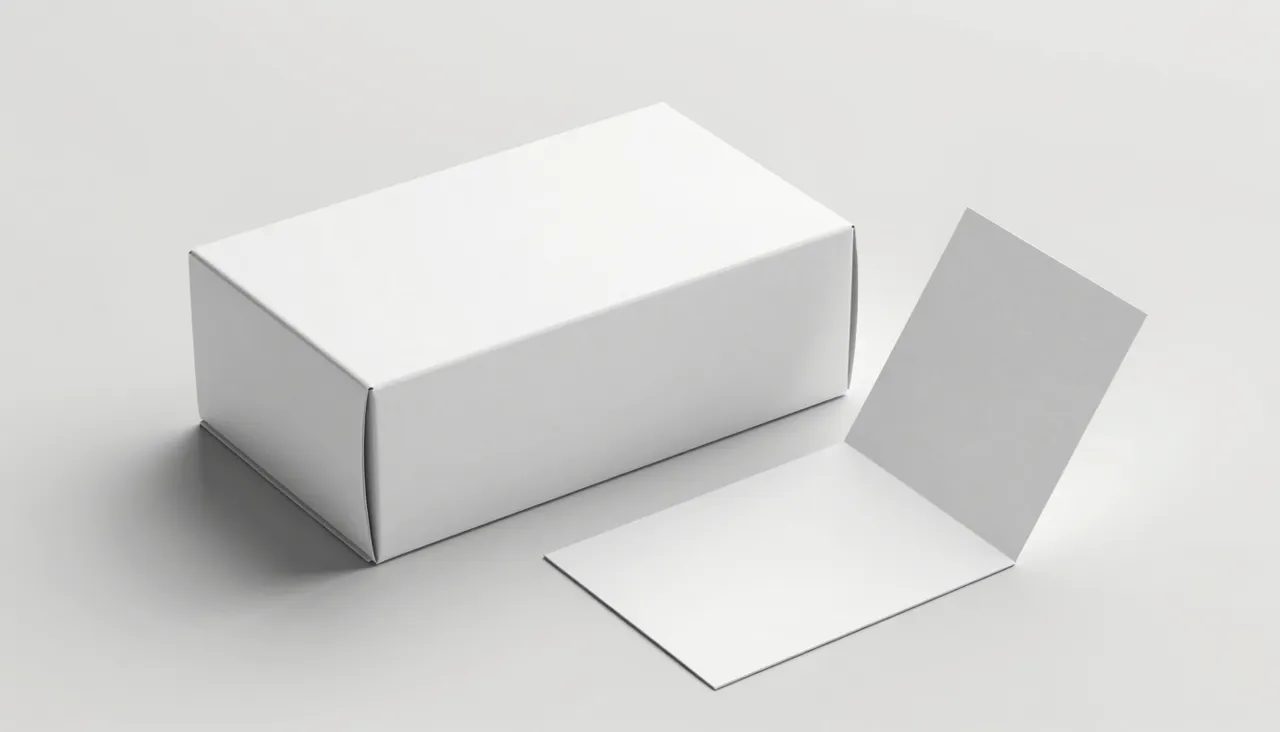
Minimal product layout with razor-sharp edges and a controlled two-color palette

What predictability means in practice

Most generators love to embellish — an extra prop here, a shifted hue there, a style drifting somewhere you never asked. This model keeps that impulse in check. Request a blue backdrop, three objects and a soft shadow, and that is what comes back. When an image is destined for a fixed layout and every redo costs a deadline, obedience is a feature.

Line quality is the other half of the story. Straight edges stay straight, circles stay round, object boundaries do not dissolve into noise. For icons, product illustrations, UI placeholders and anything with a graphic rather than painterly character, that discipline beats flashier, more artistic engines.

Form settings: proportions and resolution

Aspect ratio comes in eight flavors: 1:1, 4:3, 3:4, 16:9, 9:16, 3:2, 2:3, plus an auto mode where the model reads your prompt and picks the shape itself. Auto is handy while you explore; once the destination format is known, set it explicitly so you never crop a finished piece.

Resolution is a simple 1K or 2K switch. Use 1K for fast iteration, 2K when the image needs headroom for print or large displays. Cost follows the settings you choose and is drawn from the same token balance as every other tool on the site. Each run is saved to history with its prompt, so a winning recipe is one click away from a rerun.

Side-by-side of an original mock-up and its recolored image-to-image variation

Image-to-image with reference uploads

You can attach up to eight pictures to a request. The moment at least one file is uploaded, the model switches to image-to-image: your picture becomes the base and the text describes the transformation. That is the fast path to banner variations, a palette swap on an approved mock-up, or moving a subject into a new environment without warping its shape.

Multiple references act as a parts bin — an object from one, a background or mood from another. Assign roles in the prompt itself, otherwise the model will guess. And keep the sources tidy: the cleaner the upload, the more faithful the rework.

Best jobs, and when to switch models

Reach for it when building product cards, ad creatives on a strict grid, covers with bold shapes, or a series where ten images must read as one matching set. Style consistency across separate generations is rare in this field, and it is the model's quiet superpower — a batch does not fall apart into mismatched frames.

It is less fun when you want painterly chaos: wild fantasy scenes, expressive brushwork, deliberate surrealism. The model picker on this page has moodier engines for that. A sensible workflow is to hunt the rough idea elsewhere, then rebuild the final, precise version here.

What does the auto aspect ratio do?

The model infers the frame shape from your description — a sweeping landscape gets a horizontal canvas, a portrait gets a vertical one. Great for quick exploration; specify the ratio manually whenever the image must fit a known layout.

How is image-to-image different from a normal run?

A normal run builds the frame from scratch using only text. In image-to-image your uploaded picture is the starting point and the text steers the changes. The mode kicks in automatically as soon as a reference is attached.

How many reference images are allowed?

Up to eight per request, in JPEG, PNG or WebP. You rarely need the maximum — one well-chosen reference with a clear instruction usually outperforms a pile of loosely related ones.