Gemini Omni AI ビデオ ジェネレーター: マルチモーダル入力、文字、音声
Bottom Line Up Front (BLUF): Gemini Omni はマルチモーダル AI ビデオ ジェネレーターです。テキスト プロンプトとともに、画像、ビデオ、オーディオ、さらには保存された文字も入力として受け入れます。シーンを言葉で説明し、画像でバックアップし、会話の声を選択し、同じヒーローをフィーチャーした一連のクリップ全体を撮影します。これらすべてが 1 つのモデル内で行われます。
Omni が実際に意味するもの
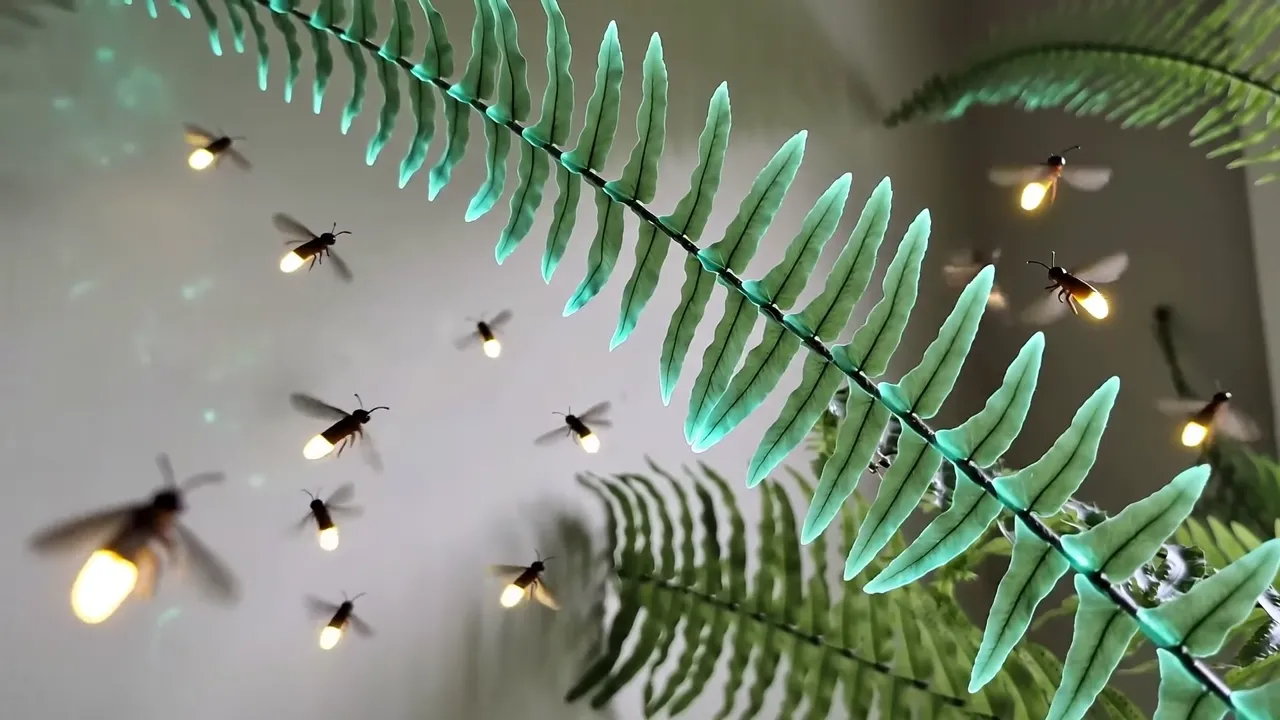
ほとんどのビデオ モデルはテキストまたは 1 枚の写真を撮影します。 Gemini Omni は、テキスト プロンプトに加えて、追加のコンテキストとして最大 7 つの画像、ビデオ、または音声を含む混合食を摂取します。 Wan特定のトラックの雰囲気を伝える、特定のフレームからインスピレーションを得たクリップではありませんか?すべてを一度に持ち込んでください。モデルは、接続したすべてのソースの重量を測定します。
それによって、タスクの組み立て方が変わります。 「こんな家、こんな照明」という長い段落で絵を描く代わりに、家の写真を見せて、その動作のみを言葉で表現します。テキストはプロットを決定し、添付ファイルは外観を定義します。各入力タイプは独自の役割を果たします。
キャラクター: 各クリップに 1 人のヒーロー
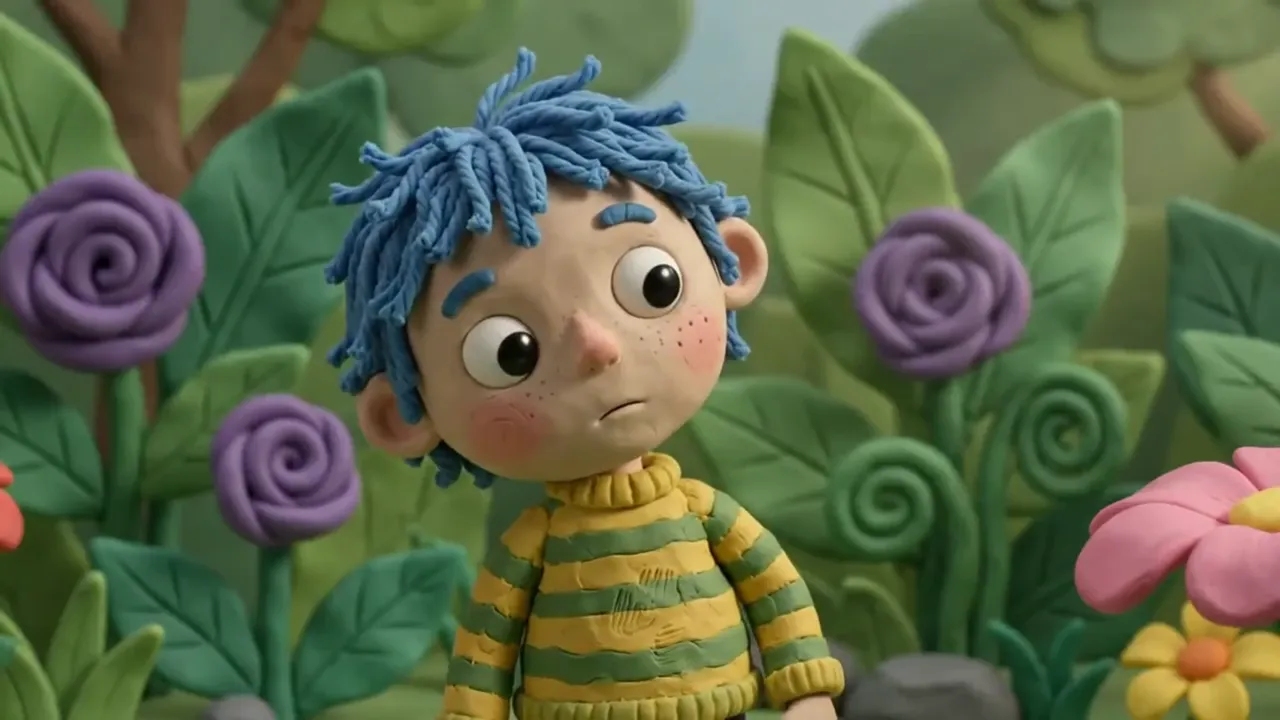
通常のジェネレーターの呪いは、ヒーローがクリップからクリップへと変異することです。ここでは、専用の「キャラクター」タブによって解決されます。キャラクターを一度作成すると、それが個人ライブラリーに配置され、それ以降は任意の世代にアタッチされます。外観はビデオを重ねても一貫性を保ちます。
バーチャル番組の司会者、ブランドのマスコット、童話の繰り返し登場するヒーローなど、このようにしてシリーズが作られていくのです。保存されたキャラクターは、生成フォームで 1 回クリックするだけでライブラリから選択されます。リファレンスを再アップロードしたり、モデルが顔を「覚えている」ことを期待したりする必要はありません。
ナレーション: プリセットの音声と独自の音声
クリップは最初から音付きで出せます。この設定では、柔らかく高音から低音の砂利音まで、さまざまな音色や個性にわたる、男性と女性のプリセット音声のリストが提供されます。音声を選択し、プロンプトにセリフを入力すると、キャラクターがフレーム内で直接話します。
どのプリセットも適合しない場合は、「オーディオ」タブを使用して、基本プリセットの上にカスタム音声を構築できます。あなたの個人ライブラリに追加され、標準のものと同じように世代に接続されます。ブランドにとって、これは、公開するすべてのビデオに 1 つの認識可能な声が含まれていることを意味します。
最大 4K の出力およびフレーム形式
Gemini Omni は、4K 出力を備えたサイト上の数少ないモデルの 1 つです。利用可能な解像度は 720p、1080p、4K です。クリップの長さは 4、6、8、または 10 秒です。フレームは、ソーシャル フィードの場合、ワイドスクリーン 16:9 または垂直スクリーン 9:16 のいずれかです。価格は期間と品質に応じて変化します。
実際的なルーチン: 生成がより安価で高速な 720p でドラフトを繰り返し、1080p または 4K で勝ったバージョンを再実行します。完成したクリップは生成履歴に保存され、ダウンロードしたり、拡張したり、調整を加えてプロンプトを再実行したりできます。
第一世代にアプローチする方法
すべての機能を一度にオンにしないでください。テキストのみから最初のクリップを作成して、モデルが説明をどのように読み取るかを感じます。次に、参照画像を追加し、次に音声を追加し、その後で永続的なキャラクターを設定します。各ステップで制御が追加されますが、表現にはもう少し注意が必要です。
シーンの説明では、フレーム内に誰がいるか、何をするか、どこでそれが起こるか、カメラがどのように動作するかなど、古典的な順序を維持してください。セリフがある場合は、それ自体の文を付けます。この構造では、ほぼ毎回 1 回目または 2 回目の試行で一貫したクリップが得られます。
Frequently asked questions
Gemini Omni は通常のビデオモデルとどう違うのですか?
混合入力とライブラリ。通常のモデルにはテキストまたは 1 枚の画像が表示されます。ここでは、テキスト、画像、ビデオ、オーディオを組み合わせ、その上に保存した文字とカスタム音声を添付します。そのため、1 人のヒーローを中心に構築されたシリアル コンテンツに最適です。
同じキャラクターで複数のクリップを作成するにはどうすればよいですか?
[Character] タブでキャラクターを作成します。それはライブラリに保存されます。その後、新しい世代ごとに 1 回のクリックでそれを選択します。ヒーローの出現はクリップからクリップへと繰り返され、参照を再アップロードする必要はありません。
ビデオに音声や音声を含めることはできますか?
はい。プリセットの音声の 1 つを選択するか、「オーディオ」タブで独自の音声を作成し、シーンの説明内にキャラクターのセリフを書き込みます。モデルは、ヒーローが選択した音声でそのセリフを伝えるクリップをレンダリングします。