GPT Image 2 Pro — exact canvas size and three quality levels
Bottom Line Up Front (BLUF): GPT Image 2 Pro is the advanced image generation mode: instead of an approximate aspect ratio you set the exact canvas size in pixels, pick one of three rendering levels and get up to four variants in a single run. Add the choice of file format and up to sixteen references of 50 MB each. All in the browser, paid from your token balance, with a full history of every generation.
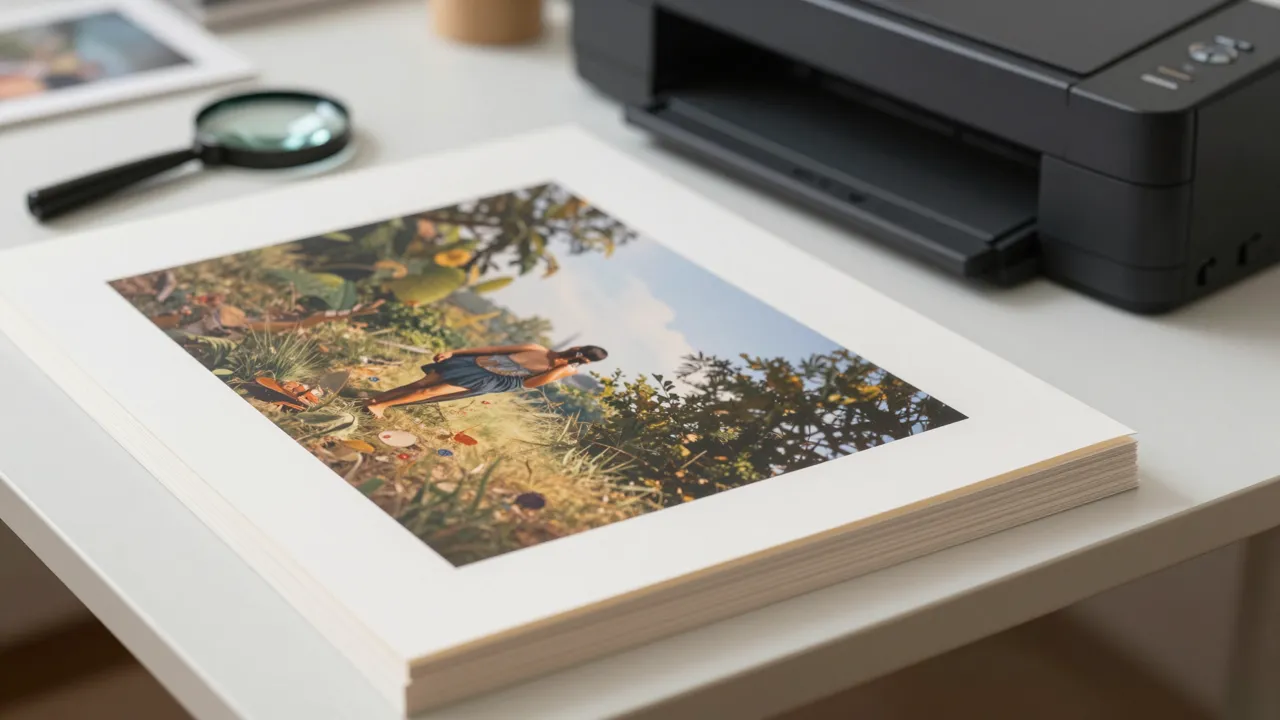
How Pro differs from the regular mode
The regular mode is built for speed: pick an aspect ratio, pick a resolution, go. Pro opens the controls the fast mode hides — the exact canvas size, a separate rendering level, how many variants a run produces, the file format and the compression. It is the same engine, only with the full control panel in front of you.
The difference shows up whenever the picture goes into a layout rather than into a feed: a product card of a fixed size, a cover for a platform with strict requirements, an illustration heading for print. When the size matters to the pixel, an approximate “roughly 3:2” has to be cropped afterwards — and the crop eats exactly the part of the frame you generated it for.
Three rendering levels and when to use them
The low level is for finding the idea. It is the fastest and the cheapest, which makes it perfect for trying wordings: composition, angle and mood are visible immediately, while the small stuff does not matter yet. Medium is the working middle ground for social media and websites — details already hold together and the price stays calm. High is for the final render: fine texture, clean edges, readable second-plane details.
The economical strategy is the photographer’s contact sheet: a dozen cheap drafts first, then one expensive final from the best prompt. The prompt stays in your generation history, so repeating a successful frame at the high level is one click rather than rewriting the description from scratch.
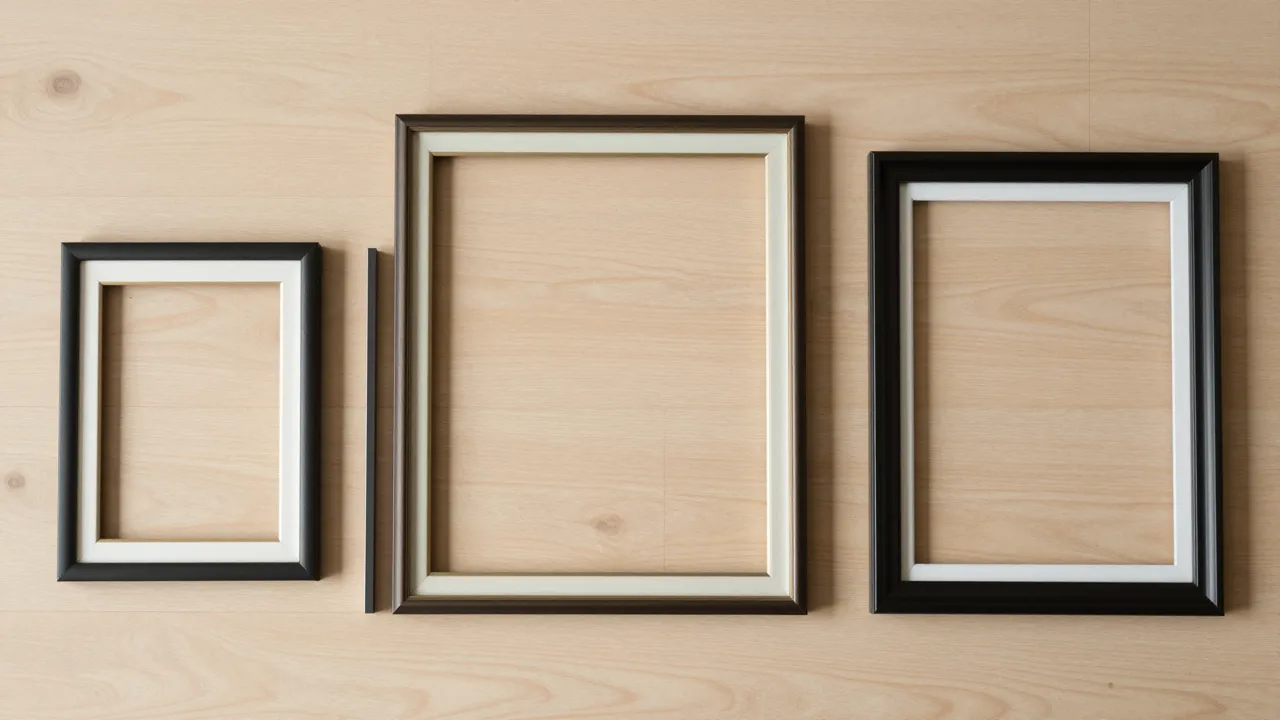
An exact canvas instead of an approximate frame
Three sizes are available: a 1024×1024 square, a 1536×1024 landscape and a 1024×1536 portrait. These are not “about 1:1” presets but the canvases the model natively works on — what you request is what comes out, with no touch-up in an editor afterwards.
The square suits avatars, cards and catalogue tiles. The landscape frame works for covers, headers and previews. The portrait one is for stories, posters and anything viewed full-screen on a phone. Choose the size before you launch: re-cropping a finished picture almost always means losing an edge of the composition.
Up to four variants per run
The very same wording can produce very different frames — that is the normal nature of generation. So in Pro you can ask for two, three or four variants at once: the model renders them in a single run and you choose from a ready set instead of relaunching and waiting one by one.
This helps most at the low rendering level: four cheap drafts show where the model is pulling your request in the first place, and from there you edit the prompt deliberately. The price is counted per picture, so the total is visible before the run — no surprises on your balance.
References, file format and compression
You can attach up to sixteen images of up to 50 MB each. One shot plus an instruction is editing: replace the background, remove what is in the way, recolour an object. Several shots is assembling a new scene from your own sources. There is no separate “editing mode” switch: the moment references are attached, the model moves into it by itself.
The default file format is JPEG — it is lighter and every platform takes it without questions. Choose PNG when the picture will still be worked on in an editor, and WebP when page weight matters. For JPEG and WebP a compression slider appears next to the format: the lower it goes, the smaller the file and the more visible the artefacts on smooth gradients.
Frequently asked questions
How is GPT Image 2 Pro different from GPT Image 2 in the model list?
It is the advanced mode of the same model. In the regular one you pick an aspect ratio and a resolution; in Pro you set the exact canvas size in pixels, the rendering level, the number of variants per run, the file format and the compression. For quick pictures the regular mode is handier; for layouts and print, Pro.
Can I get a picture with a transparent background?
No — this model does not support transparency. If you need an object without a background, generate it on a flat single-colour backdrop and cut it out in any editor, or pick a model that lists transparency among its features.
How much does a generation cost and what drives the price?
The price depends on the rendering level, the canvas size and the number of variants: the low level costs pennies, the high one noticeably more, and four pictures cost four times one. The exact amount is shown on the page before the run, charged on the fact of generation and refunded automatically if it fails.