VEO 3.1 Reference to Video: Your Object, New Scenes
Bottom Line Up Front (BLUF): VEO 3.1 Reference To Video is an AI video mode where your images lead and the text follows. Upload one to three reference pictures — a product, a character, a style — and describe what should happen with them. The model carries your recognizable object into a brand-new scene instead of inventing a random stand-in.
What Reference To Video Means
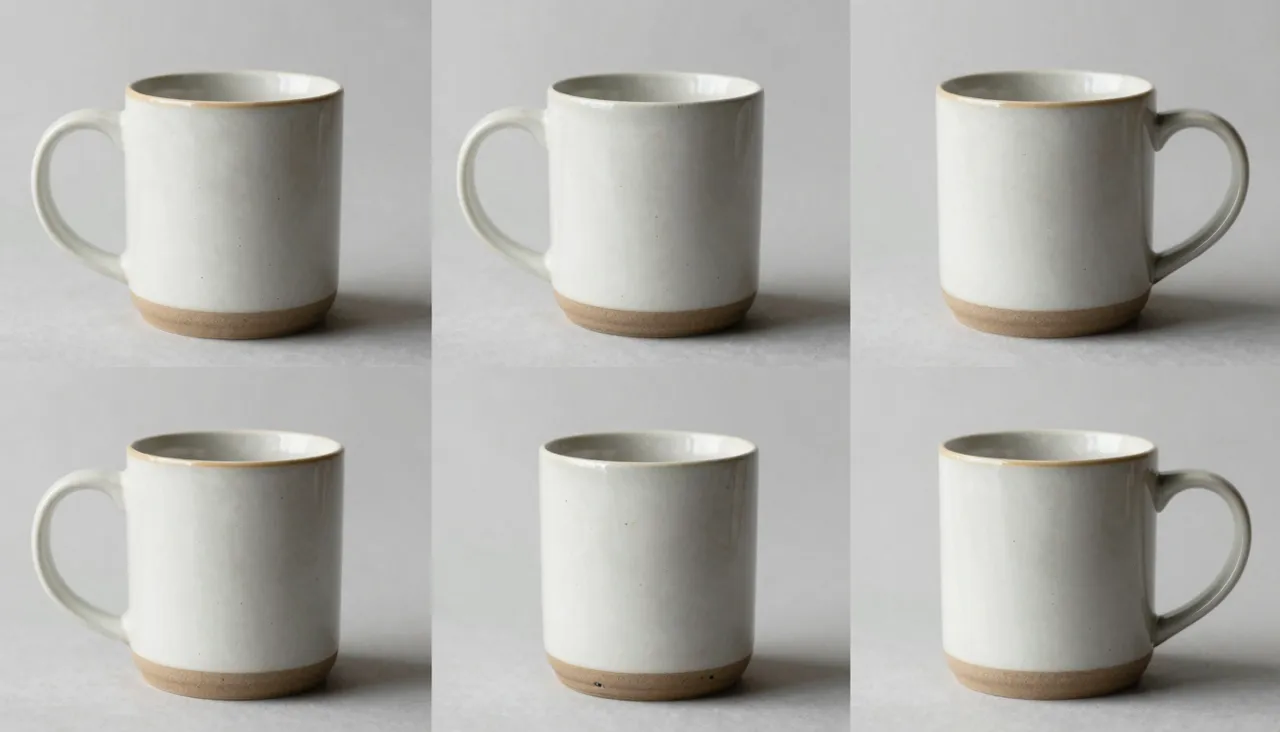
A regular generation reinvents the frame every time: ask for a sneaker on a running athlete and you get some sneaker, never yours. The reference mode fixes exactly that. You show the model a specific object across one to three images, and that object is what appears in the finished clip.
References are not opening or closing frames — they are examples. The model studies what your item or character looks like, then shoots a new scene around it based on your text. At least one image is mandatory; the mode simply will not start without references.
How It Differs From Image-to-Video
In classic image-to-video the picture becomes the first frame, and the action grows out of it — same composition, same angle. Reference mode is freer: the scene is built from scratch according to your prompt, while the images only dictate how its participants should look.
The two modes suit different jobs. Bringing one specific photo to life belongs to standard VEO 3.1. Showing your product in settings where it was never photographed, or walking one character through a series of different clips — that is what Reference To Video exists for.
Choosing References That Work
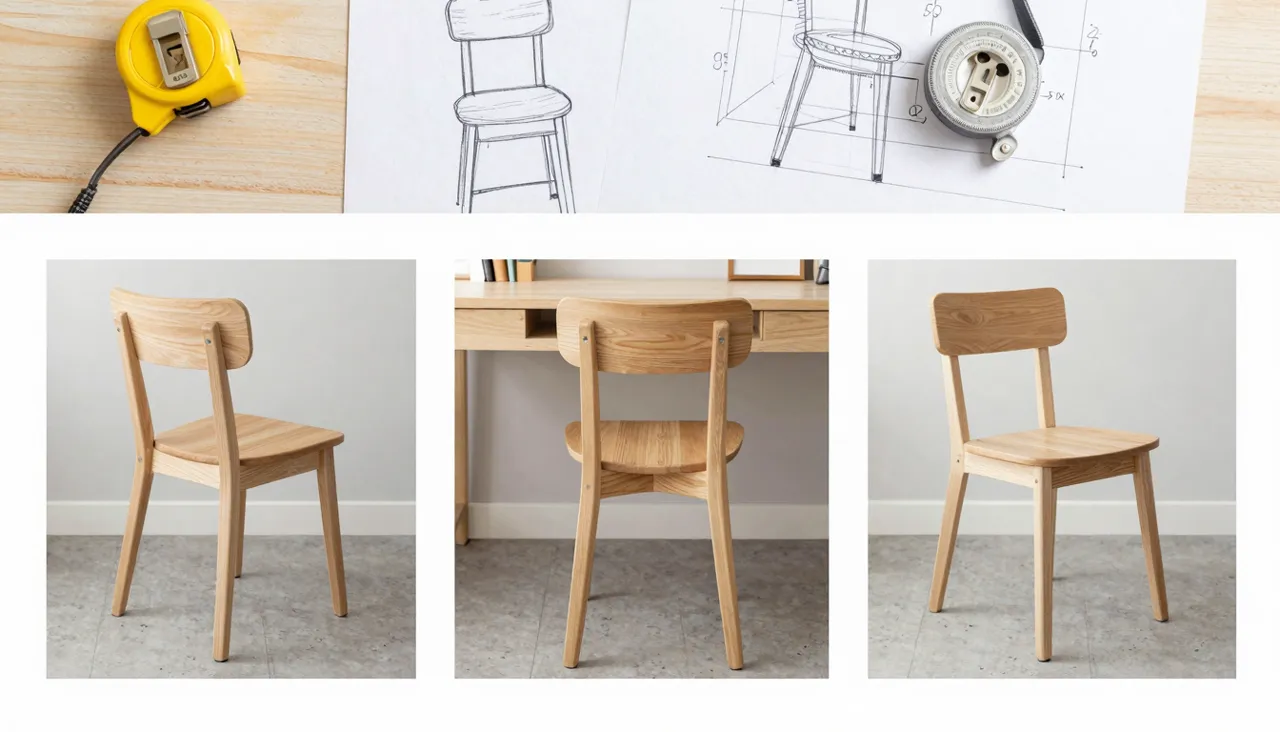
The rule is simple: the model must see the object clearly. Use sharp images where the subject fills a good part of the frame, without visual clutter around it. For objects with complex shapes, two or three angles help the model grasp the volume rather than just the front view.
In the prompt, skip describing what the references already show — describe the scene and the action instead: where the object is, what surrounds it, how the camera moves, what the light is like. The frame format is set in the options: 16:9 landscape, 9:16 portrait, or Auto.
Fast-Only Mode and Pricing
Reference generation runs exclusively on the Fast tier — Lite and Quality cannot be selected here, and the form snaps back to Fast if you try. In practice that is an advantage: renders come back quickly, so you can cycle through several scene ideas with the same reference set in one sitting.
The cost of a clip depends on generation parameters and is paid from the site-wide token balance. Failed or refused generations cost nothing. Standard VEO content rules apply: no children in frame, no animal cruelty, no adult material.
Where the Mode Shines
The first big use case is e-commerce: with a handful of product photos you can shoot clips for listings, ads, and social posts without renting a studio. A sauce bottle at a summer picnic, sneakers on a city run, a face cream on a marble bathroom shelf — all from the same three references.
The second is serial content with a recurring hero: a brand mascot, a character from your illustrations, a signature object. Prepare the references once and you get a whole line of videos where the hero stays consistent from clip to clip. Results are stored in history, ready to download or extend.
Frequently asked questions
How many reference images can I upload?
Between one and three, and at least one is required — the mode will not start without references. For objects with complex shapes, providing two or three angles helps the model capture the form accurately.
Why can I not pick the Quality tier?
Reference To Video runs only on Fast; that is a technical constraint of the mode, and the form resets any other choice back to Fast. The upside is quick renders and cheap iteration on scene ideas.
Will the object match my photos exactly?
The model keeps the object recognizable, but this is generation, not copying — small details may drift. Clean references from several angles improve accuracy, and an off take can simply be regenerated.