Video templates: a ready video structure for your text, images and voice

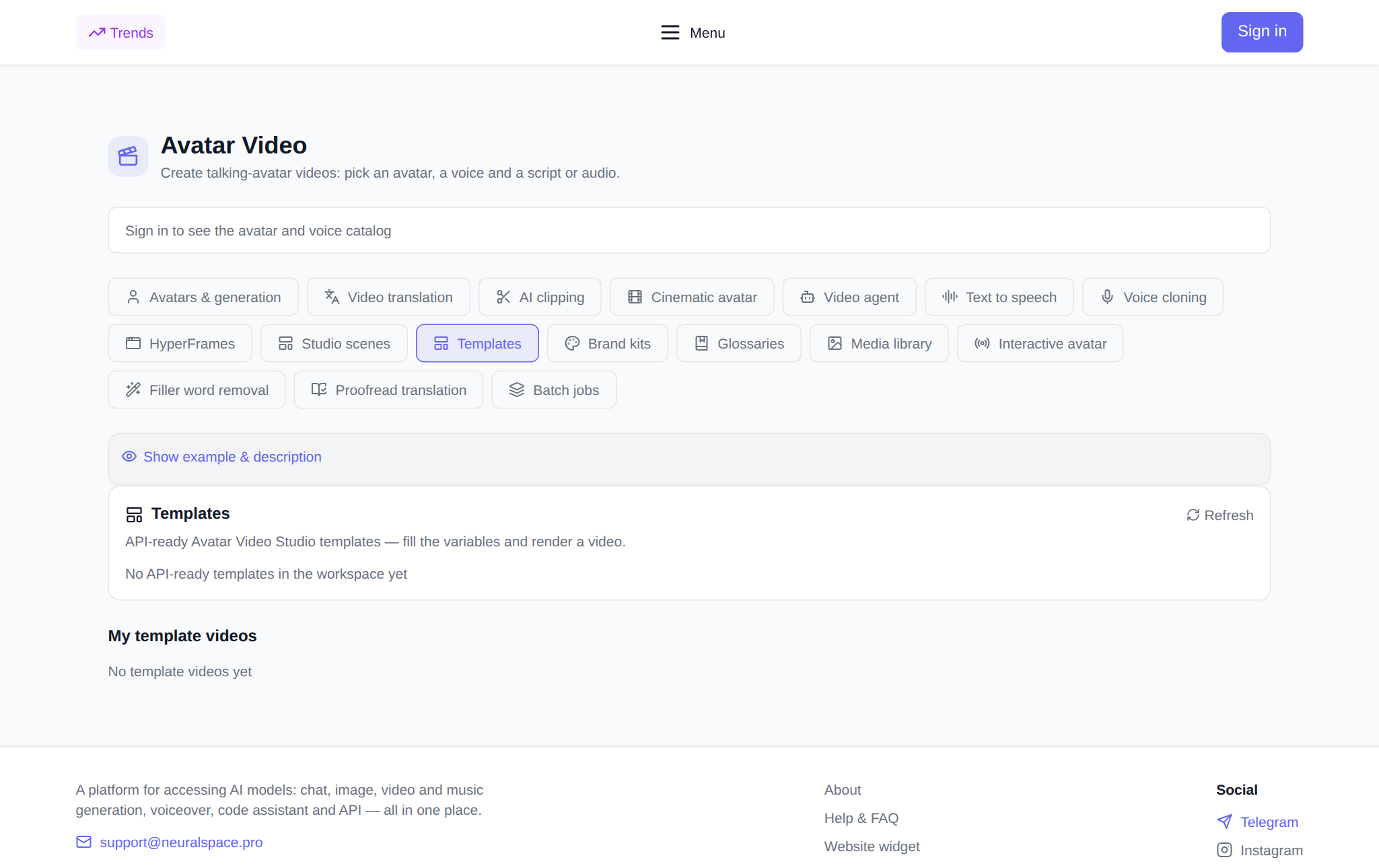
Templates is a tab in the Video avatars section where a video is built not from scratch but from a ready structure: you pick a template from the gallery, fill in its variables — text and links to images, video and audio — and start the generation. The avatar, voice, scenes and styling are already baked into the template, so instead of assembling a script you simply drop in your own data and get a finished video. Below: what a template is, what it is made of, how to go through it step by step and what it costs. The tool opens in the Templates tab.
What a video template is
A template is a pre-built video structure: the scenes, avatar, voice and styling are already set, and variables stand in for the data you can change. You do not build the video from scratch or tune every frame — you take the ready frame and drop in your own content: the lines of text, images, video fragments, audio. The result keeps the format the template author designed, but with your content. It is the fastest route to a video when the structure is already proven and does not need changing.
What a template is made of: variables
Every template has a variable schema — a list of fields you can fill in. The variable type decides what goes into it:
- Text — typed into a regular field. These are the lines, headings and captions the avatar will say.
- Image, video, audio — accept a public link to a file: a picture, a video fragment or an audio recording.
- Other types (for example, character and voice) keep the template value — they are not changed, and they are what gives the video its recognisable look.
If a template has no variables, there is nothing to fill in — such a template simply renders as is.
What to set before launch
- Variables — fill in at least one: without it the generation will not start.
- Video title — an optional field: the video appears under it in the history.
- Glossary — optionally pick a glossary to set the pronunciation of terms and names.
- Price — shown in tokens before launch.
How to generate a video from a template: step by step
- Open the Templates tab in the Video avatars section and sign in.
- Pick a template in the gallery — each shows a preview and a name.
- The variable schema opens. Fill in the text fields, and for image, video and audio fields paste public links to your files.
- Optionally set the video title and choose a glossary.
- Check the price in tokens — it is shown before launch.
- Press “Generate from template”. The video appears in the “My template videos” block with a waiting status and updates itself.
- Once it is ready, the video plays right in the card and downloads with one button.
What a template generation costs
Billing is in tokens, with no subscription: new users receive starter tokens at sign-up, and the balance is then topped up by any amount. The price is visible before launch and depends on the volume of text variables — they are used to estimate the avatar's speech length, so the longer the text, the more the video costs. What you see in the interface is what is charged. If the launch fails, the tokens are returned to your balance automatically.
When it comes in handy
- Serial content: one template and changing text — quick releases of same-format videos.
- Product presentation: a ready structure with a host avatar, into which your slides and lines are dropped.
- Format localisation: the same template with different text — a version of the video for a new audience.
- Fast start: when there is no time to assemble scenes and set up an avatar by hand.
How it differs from the neighbouring tabs
“Avatars & generation” makes a single video from an avatar, a photo and text, Studio scenes assembles a video from separate scenes, the video agent makes a video from a text brief, while Templates is a ready frame with variables: the structure and styling are already set, and you only drop in your data.
How it pairs with other tabs
It is handy to keep the files for variables in the Media library, terms and pronunciation in Glossaries, brand colours and logo in Brand kits, and the finished video can be translated into other languages in Video translation and cut into short fragments in Clip cutting.
FAQ
How is a template different from a regular video generation?
In a regular generation you pick the avatar and voice yourself and assemble the script. A template is a ready structure: the scenes, avatar and styling are already set, and you only fill in the variables — text and links to files.
What data can I put into a template?
Text is typed into a field, while image, video and audio accept a public link to a file. Variables such as character and voice keep the template value.
How much does a template generation cost?
Billing is in tokens with no subscription: new users get starter tokens, then the balance is topped up. The price is shown before launch and depends on the text volume; if it fails, the tokens are returned to your balance.
Why is the template list empty?
The gallery shows the templates available to your workspace. If the list is empty, there are no API-ready templates in it yet — in that case use the other tabs of the section for your video.