Kling 3.0 AI Video Generator: Text and Photo to Video
Kling 3.0 is an AI video generator that turns a written prompt or a single photo into a moving clip. You describe the scene, pick an aspect ratio and length, and the model does the rest. It offers two quality modes, std and pro, plus multi-scene clips, optional audio, and reference elements for consistent characters.
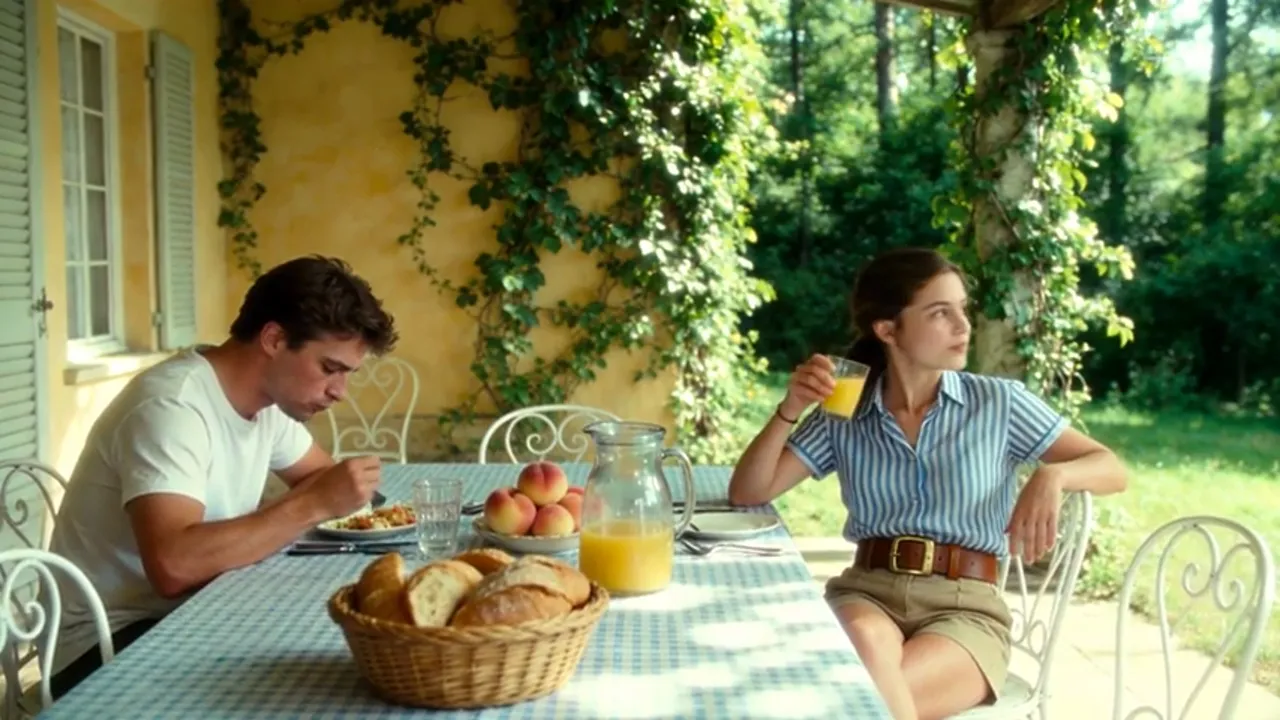
What Kling 3.0 can do
There are two starting points. From text, the model builds a scene entirely from your words: describe the setting, the action, and how the camera should move, and it generates the footage. From an image, your uploaded photo becomes the opening frame, and the prompt tells the model how that frame should come alive.
The generation form lets you choose the frame format for your platform, widescreen for YouTube or vertical for Shorts and Reels, and set the clip length. A separate toggle adds a generated soundtrack. Every result lands in your generation history, where you can download it, extend it, or grab its final frame for a follow-up shot.
How to turn a photo into video
Upload a picture and spell out the motion you want. An old family portrait can blink, tilt its head, and catch a breeze in the hair. A product shot can become an ad opener: the bottle rotates slowly while a highlight slides across the glass and the background shifts color.
Precision beats poetry here. Instead of asking for something beautiful, name what moves, at what pace, and where the camera goes. Leave static details out of the instruction entirely, so the model concentrates on the main action and keeps the rest of your source image intact.
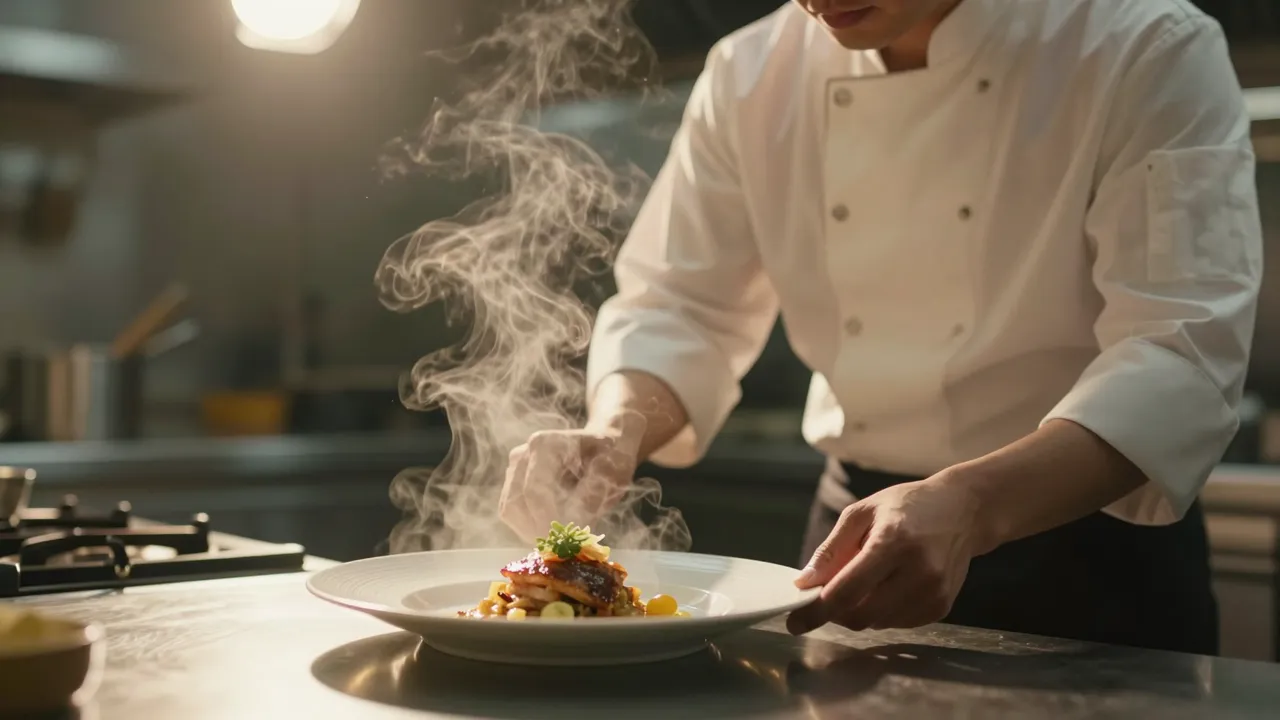
Std vs pro mode explained
Std is the workhorse: fast enough for drafts, idea checks, and clips that do not demand maximum fidelity. Pro takes longer and costs more per run, but renders fine textures, small details, and complex motion more carefully. The price of each generation depends on duration and the quality you select.
A practical workflow: test your concept in std first, see how the model reads your prompt, and fix the wording. Once the scene works, rerun the final version in pro. The reuse-prompt button in history restarts the same request without retyping anything.
Multi-shot clips and reference elements
Kling 3.0 can chain several scenes into one clip. Switch on the multi-shot mode and describe each episode separately; the total duration is split between them. That turns a single take into a small story: a character steps outside, gets into a car, and drives off toward the sunset.
Elements solve a different problem, character consistency. Upload an image of your hero or a key object as an element, and the model will anchor the generation to it. This matters when the same character has to look recognizable across several scenes or a whole series of videos.
Common beginner mistakes
The classic one is an overloaded prompt: five actions, three camera cuts, and a dialogue crammed into a short clip. The model tries to fit everything and blurs each movement. One clear idea per scene works far better. Another trap is expecting crisp on-screen text; generated captions come out garbled, so add titles in an editor afterwards.
When a result disappoints, do not start from scratch. Open it in history, figure out which part of the description the model misread, and sharpen exactly that phrase. Extracting the last frame of a good clip and continuing from it is another underrated trick.
Can I generate a video from text alone?
Yes. A written description is enough; the model invents the visuals itself. An image is only needed when you want to animate a specific photo or lock in the exact look of a scene.
Does the clip come with sound?
By default you get video only. Turn on the audio toggle in the form and the clip arrives with a generated soundtrack. You can always layer your own music on top later.
The result missed the mark. What now?
Reuse the prompt from your history and tighten the motion description, usually by cutting extra actions down to one. For the polished final render, switch from std to pro mode.