Virtual Light on Photos for Free: Light and Shadows by Depth
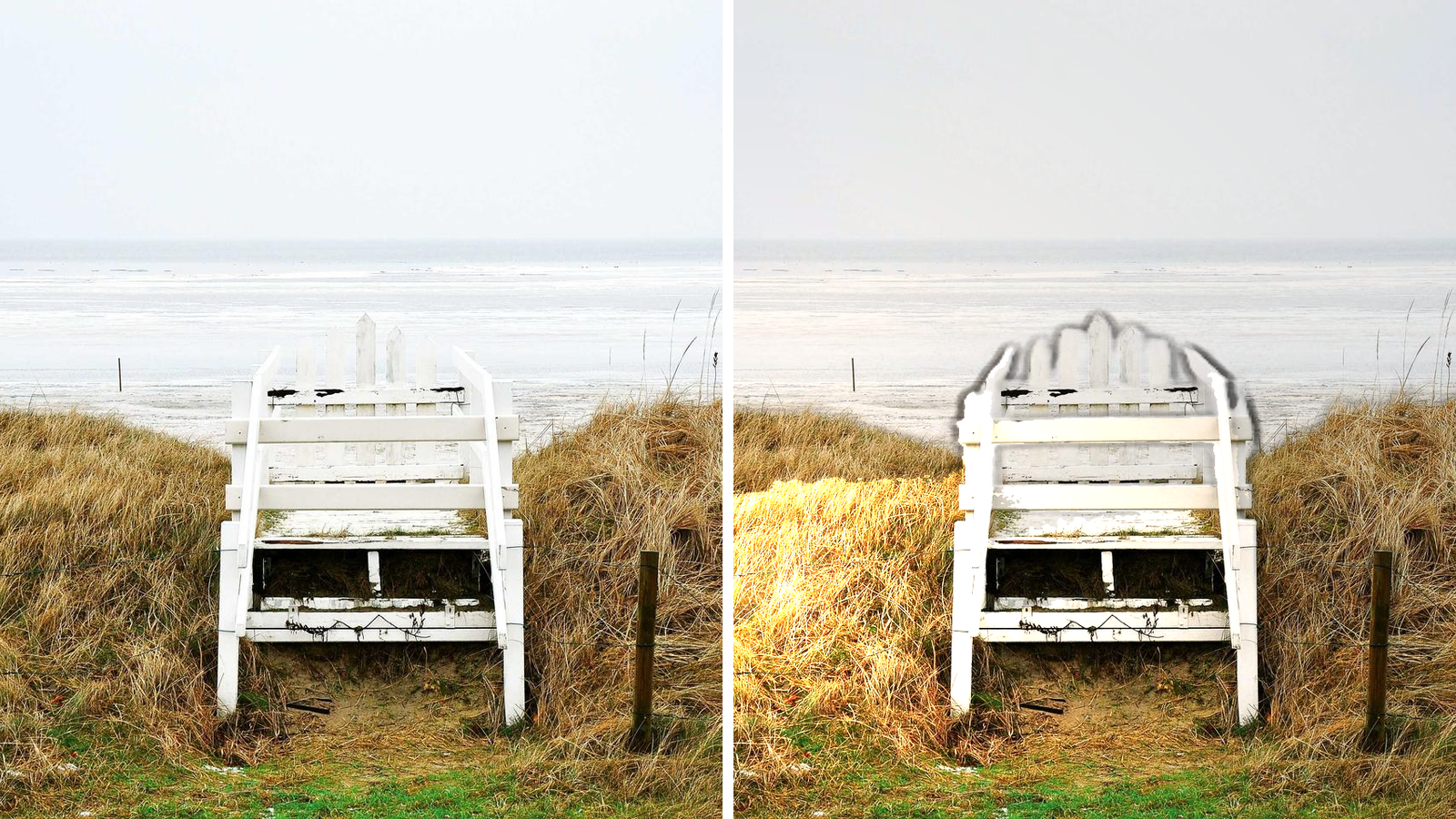
Where the light comes from shapes a photo more than any filter: it decides whether an object looks round or flat. Virtual light on photos puts a light source right on your shot. Drag it across the frame, raise or lower it, change brightness, colour and how hard the shadows are. Everything is computed from a depth map inside your browser: the photo is never uploaded, no tokens are charged and no account is needed.
Why the light looks real
Before the first frame the tool builds a depth map, estimating how far every pixel is from the camera. A Depth Anything V2 Small model does that job: 26 MB of weights download to your device once and stay in the browser cache, so later runs work offline. Shadows, relief and highlights are computed from that map, which is why the light catches volume — the near edge of a face or a box brightens first, and a shadow falls behind it.
Which engine runs depends on your hardware. With a graphics card (WebGPU) each change redraws almost instantly; on the processor (WASM) it is noticeably slower but produces the same picture. The label next to the start button shows the path in use, and on a modest laptop the first frame after a slider move can stutter.
Lighting your own photo
- Open the tool and choose a photo or drop it onto the frame. JPG, PNG, WebP, BMP, GIF and AVIF are accepted.
- Press “Turn the light on”. The first run waits for the depth model; after that the browser loads it from cache.
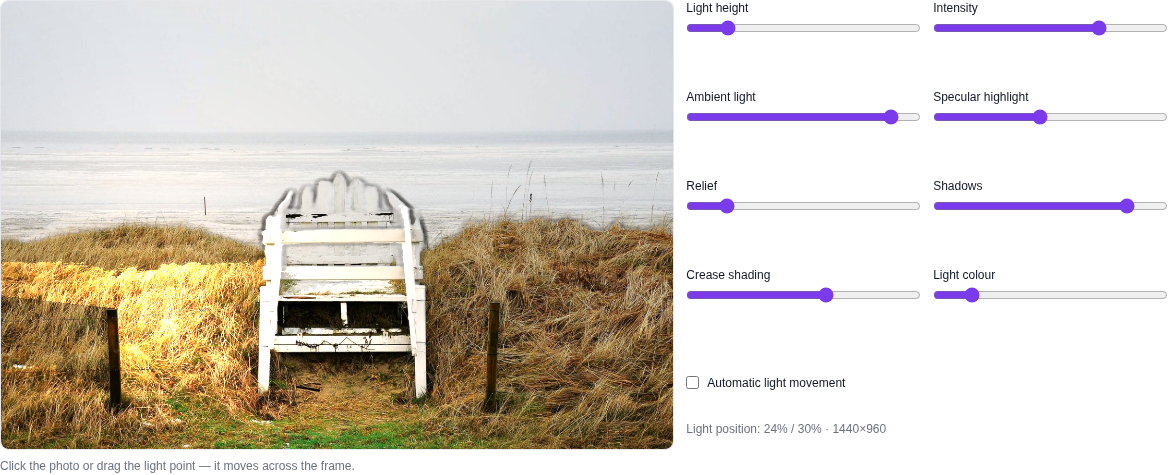
- Click the spot in the frame where the light should stand. Drag that point and the light follows your cursor, taking the shadows with it.
- Adjust the sliders: light height, intensity, ambient light, highlight, relief, shadows, crease darkening and colour temperature from 2000 to 12000 K, from warm indoor light to cold daylight.
- The “automatic light movement” checkbox slowly sweeps the source across the frame — handy for finding a nice position before you repeat it by hand.
Download the result with “Download PNG”. The file keeps the full resolution of your original, while the on-screen preview is capped at 1400 pixels on the long side to stay responsive. “Reset” returns to the soft top-left light and “Another photo” swaps the image without leaving the page.
What it cannot do
This is relighting by depth map, not generative relighting. Existing shadows and reflections are not removed: the tool lays new light over what was already photographed. There is no true 3D geometry behind the picture, so a very strong side light can make the edges of an object look lit up rather than rounded. Hair, glass and shiny surfaces trip up the depth map more often, so move the light gradually there and check the result.
A couple more limits. The 1400-pixel preview is fine for choosing the light but too small to judge fine detail, so check the exported PNG. Some browsers lack the local image processing support this tool needs; it will then honestly suggest Chrome or Edge instead of quietly uploading your photo. Most importantly, the file stays with you: no upload, no queue, no charge for attempts.
Who saves time with it
A seller can reshoot a product under the lighting a listing needs without building a lightbox. A designer can show a client two lighting options for the same layout in a couple of minutes. A photographer can plan where to place a lamp before the shoot. Interiors and scans of old photographs work too, as long as you do not expect a full studio-lighting replacement.
When you need something else
For a frame that is simply too dark, brightening dark photos raises the overall exposure. Rebuilding light and materials from scratch is what photo relighting does, and that one is generative. Other models of the section are collected on the Images page, and free local tools live under Other Tools. If you just want to try it, start with one of your own shots: pick the photo and click where the light would naturally come from.