Media library in the Avatar Video section: store files once, reuse them in every video
The media library is a tab of the Avatar Video section that stores every file you upload: images, video and audio. The idea is simple: upload a file once, then drop it into new videos with one click — no hunting for it on your disk and no re-uploading. An image from the library goes straight into avatar video generation, a video goes into dubbed translation. Below: what you can upload, how to start, how to reuse files and what it costs.
What the media library is for
Working with avatar videos means the same files come back again and again: a speaker's photo for a series of clips, a branded intro, a recorded voice-over. Without a library, every new video starts with another upload — wasted time and version confusion. The media library fixes this: files are uploaded to your workspace once, kept in a single list with filters and search, and applied to generation and translation from that same list. It is "My files" inside the video section: open, find, apply.
What you can upload
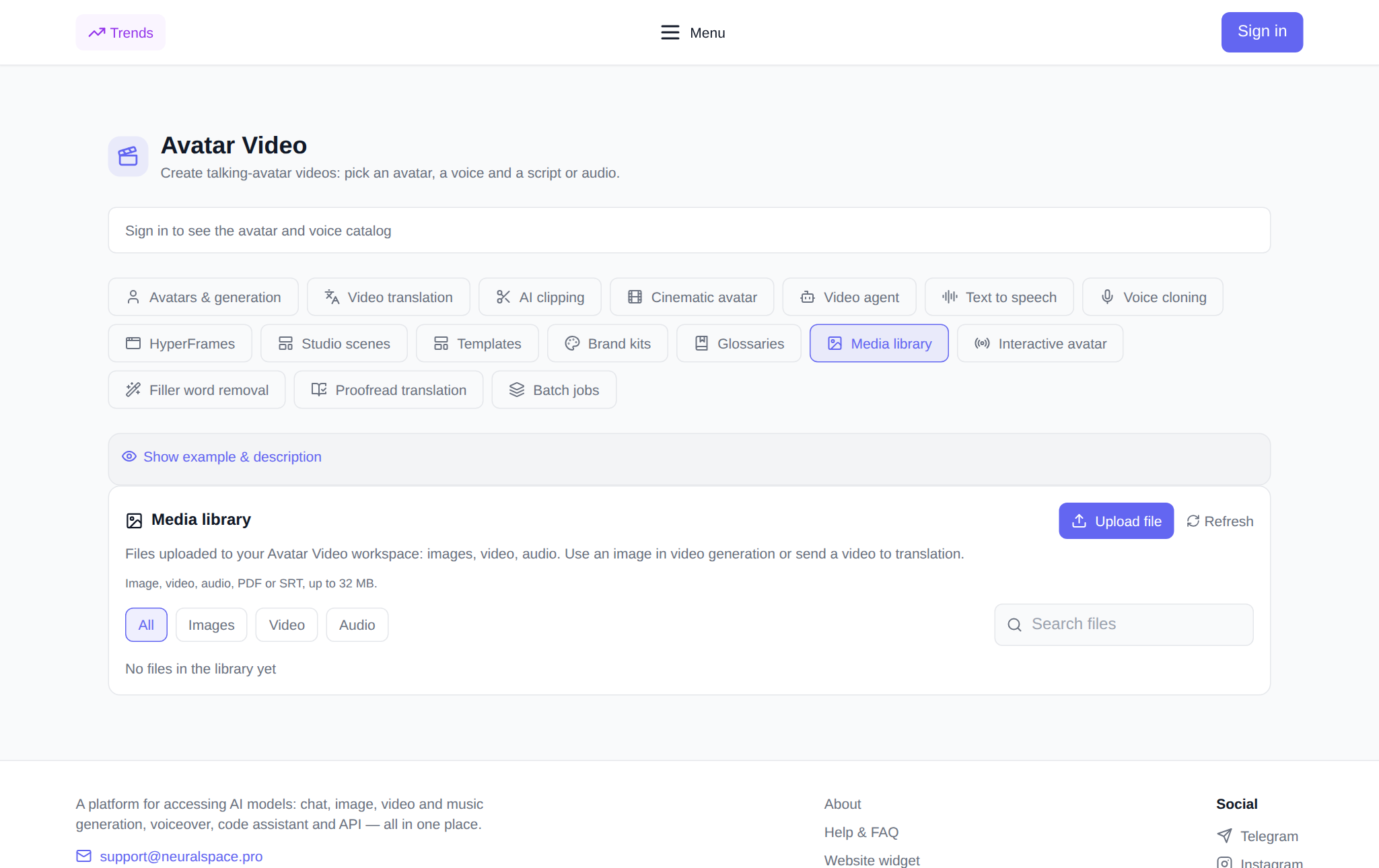
The Upload file button accepts an image, video, audio, PDF or SRT subtitles — up to 32 MB per file. Uploaded items appear as cards: file name, type and upload date. Above the list there are All / Images / Video / Audio filters and a name search, so even a large library gives up a file in seconds.
The library is genuinely alive: per the platform's upload log for 02.09–01.10.2026, users added 1,070 images (about 2 MB per file on average), 32 videos (about 20 MB on average) and 54 audio files (about 2.5 MB). The average uploaded clip weighs around 20 MB — so the 32 MB limit covers a typical upload; a long source weighing hundreds of megabytes is better compressed first or split into fragments in the AI clipping tab.
How to start: step by step
- Open the Media library tab in the Avatar Video section.
- Sign in to your account: guests cannot upload or use files — a login window opens when you click.
- Click Upload file and choose an image, video, audio, PDF or SRT file (up to 32 MB).
- Wait for the "file uploaded" message — the card appears at the top of the list. The refresh button next to it pulls the current state of the library.
How to reuse files
Under each card there are actions, depending on the file type:
- An image has a "Use in video" button. The section switches to avatar generation with the file already selected as the source: pick an avatar, a voice and the script, and run it.
- A video has a "Translate" button. It opens the video translation tab with that clip loaded — you can start dubbing right away.
- The trash icon deletes a file from the library — with a confirmation, so nothing disappears by accident.
The same file can be used as many times as you like: it stays in the library after every generation, so a series of videos with one photo or one intro is built without repeated uploads.
What it costs
Uploading, storing, searching and deleting files does not spend tokens — this is file management, not generation. You pay only for the generation or translation itself: the token price is shown before launch, and if a task fails, the charge is returned. There is no subscription: new users get starter tokens for their first runs, then you top up the balance with any amount.
Pairs well with
- Templates — generation from a ready video structure.
- Brand kits — your logo, colors and fonts for the look.
- Batch tasks — run several videos or translations at once.
- Glossaries — pronunciation and translation rules for terms.
Frequently asked questions
What files can I upload to the media library?
An image, video, audio, PDF or SRT subtitles — up to 32 MB per file. The type is detected automatically and shown on the card; images, videos and audio have their own filter buttons above the list.
Is uploading files paid?
No. Uploading, storing and deleting files does not spend tokens. Tokens are used only for generation and translation — their price is shown before launch; there is no subscription, and new users get starter tokens.
Can I use one file in several videos?
Yes. A file stays in the library after generations: drop it into new videos as many times as you need — no re-uploading required.
Why does the site ask me to sign in when I click Upload file?
The media library is tied to an account: guests cannot upload or use files. Sign in or register — after that the upload, "Use in video" and "Translate" buttons work without restrictions.