Talking avatar from a photo: how to make an avatar video
A talking avatar from a photo is a video in which the person in your picture speaks your script: lips, facial expression and head movement follow the speech. On NeuralSpace you build it in the Video avatars section: upload a photo or pick a ready-made avatar, type a script or attach a voice recording, and get a finished clip. Below is the step-by-step path, the settings that really matter and what the result looks like.
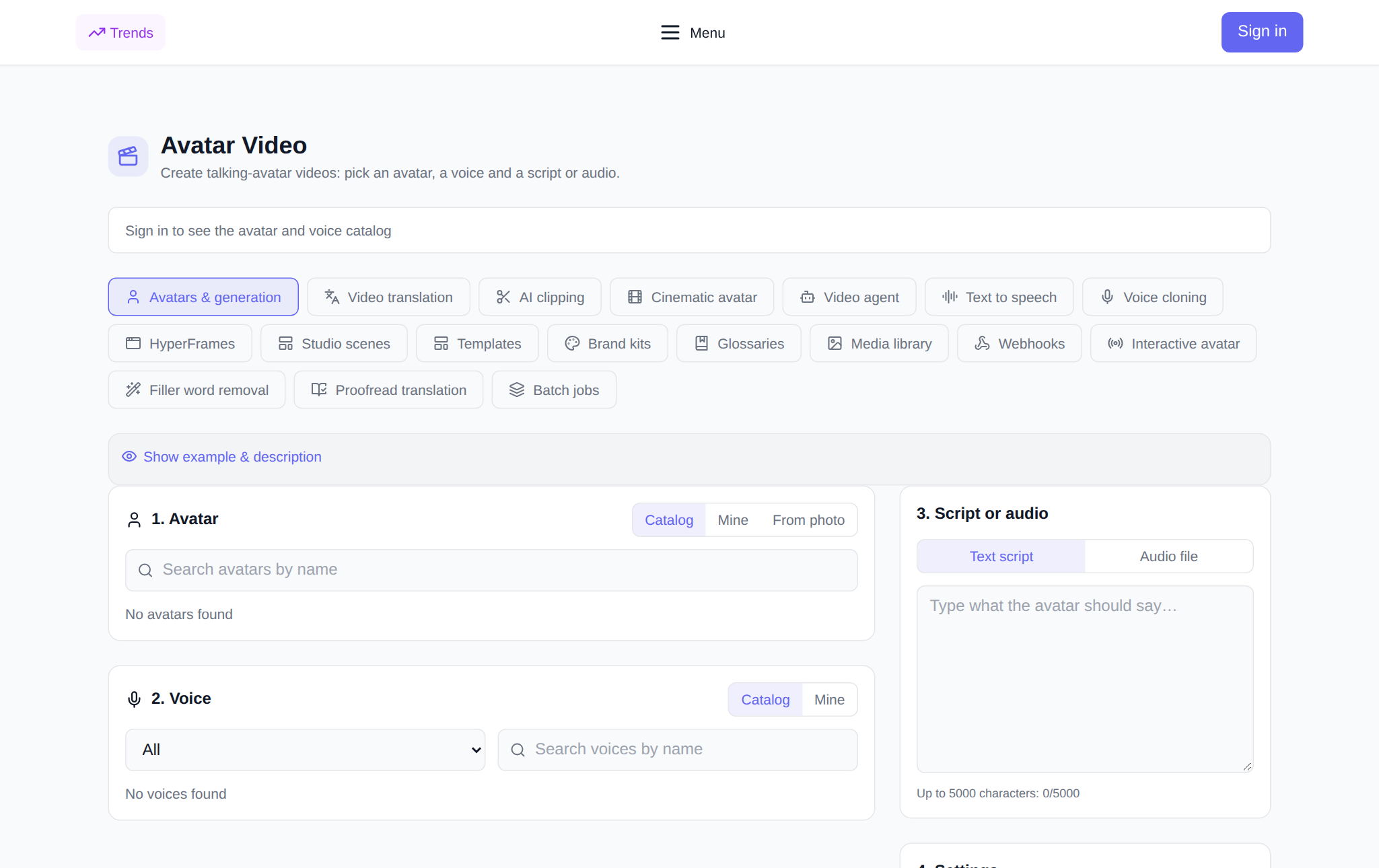
What the Video avatars section can do
The section is open to everyone: you can explore the tools without signing in, and the login window appears only when you start a generation — exactly like the video and image sections. Inside there are eighteen tools, and the talking avatar is just the first: video translation with dubbing, clipping long recordings into shorts, cinematic avatar, video agent, text to speech, voice cloning, templates, brand kits, translation glossaries, media library, webhooks, interactive avatar, filler word removal, translation proofreading and batch jobs. Starting with avatars makes sense — it is the most visual tool of the section.
How to make a talking video from a photo
- Open the section. The address is neuralspace.pro/en/avatars/avatar-videos. The page loads right away, no sign-in needed, so you can study the tool and fill in the form first.
- Choose the source. Either a ready avatar from the catalog (it already has a face and a voice) or your own photo — then your person will speak.
- Set the speech. Type the script, or upload an existing audio file. With audio the price is more precise because it depends on duration.
- Set the frame. Pick the engine, the aspect ratio (16:9 for YouTube, 9:16 for vertical feeds, 1:1 for social) and the resolution.
- Press Generate. The token price is shown before the run, and the finished video appears in the list below, ready to download.
What makes the result better
The quality of the source photo matters more than any setting: the face should be fully visible, sharp, evenly lit and alone in the frame. Keep the script in short sentences — long clauses with many terms sound less natural. Punctuation helps the model place pauses, so write it the way you want it spoken. For vertical platforms choose 9:16 from the start, otherwise you will have to crop the result.
What it costs
You pay in tokens, with no mandatory subscription: new users get starting tokens, then you top up the balance with any amount. The price of a generation depends on the engine, the avatar type and the duration, and it is displayed in the form before you press the button. If you do not like the clip, editing the script and regenerating is cheaper than editing video by hand.
Where it helps
A talking avatar covers the cases where you need a person on screen but have no time to film: a landing page greeting, a short product explainer, an internal training clip, a personal message to a client, a news item voiced in another language. The same script can be released in several formats — horizontal for the site and vertical for social media.
FAQ
Do I need an account to view the section? No. The Video avatars page is open to everyone; the login window appears when you try to generate, just like in the video and image sections.
Can I use my own voice? Yes: upload an audio file with your recording, or clone your voice in a separate tool of the section and use it in the generation.
What if my photo does not fit? The system tells you before the generation starts. A front-facing shot in even light, without glare on glasses and without a covered face, usually works.
Which languages can the avatar speak? Any language of the site: write the script in English, Russian, Arabic, Chinese and other interface languages.