How to decompose a finished picture into layers with Seedream 5 Pro
Briefly about the main thing (BLUF)
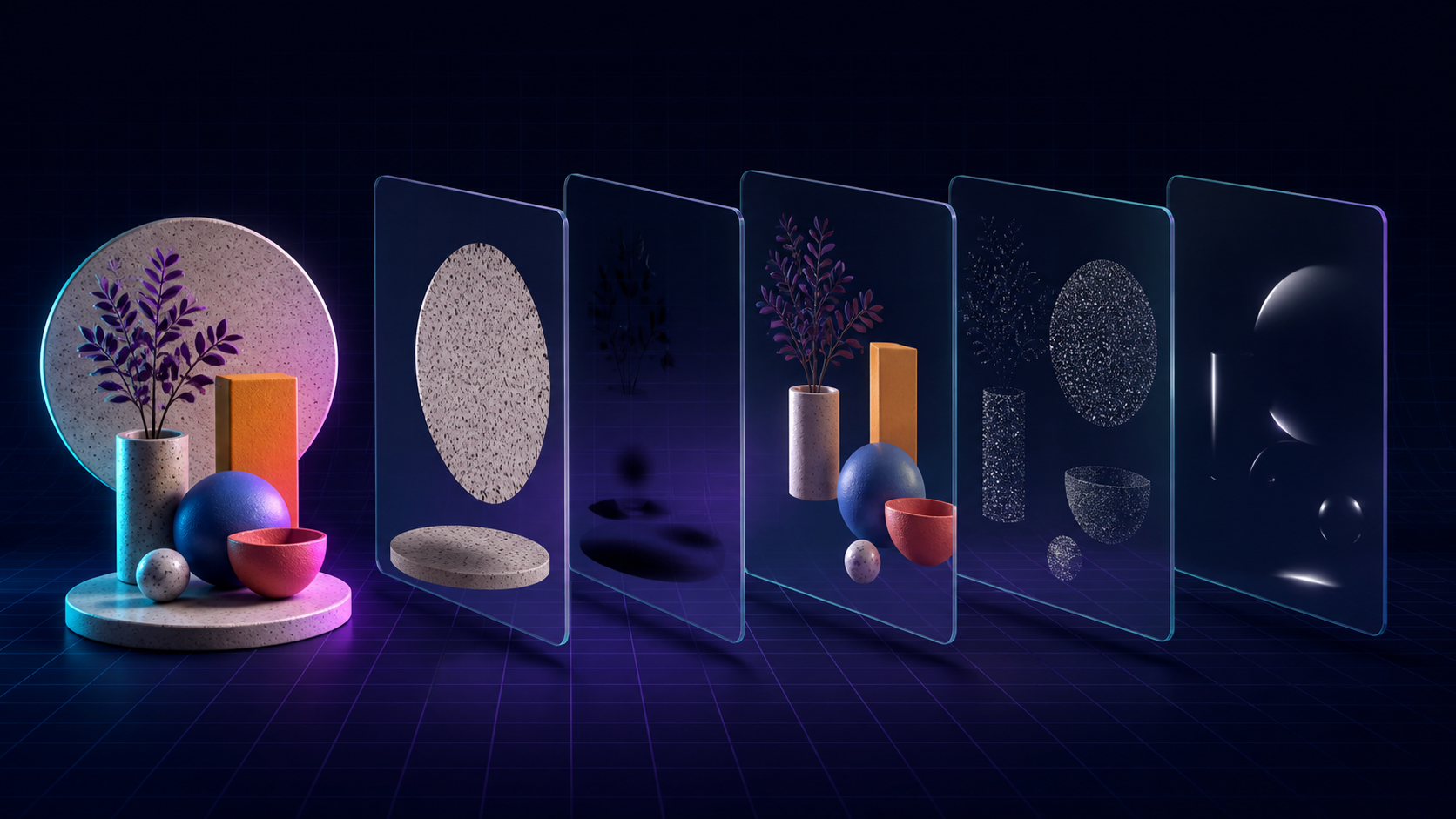
Seedream 5 Pro can decompose the finished image into layers - object, background, shadows: the input is one flat JPEG, the output is parts that can be moved and replaced individually. We show what the output is, where the mode saves the most time and how the price is calculated.
It happens that you look at a finished banner and think: I wish I could just move the product, remove the shadow or replace the background. But the source is one flat JPEG. Previously, you could either carefully cut everything out manually, or ask the neural network to redraw the entire frame and hope that it wouldn’t spoil the good details.

IN NeuralSpace Seedream 5 Pro now has a different path: image decomposition into layers. You upload one image, select a new mode, and you get not just another variation, but a set of individual images: the base and the found elements of the scene.
What exactly is the output?
The model analyzes the composition and separates objects, background, shadows and other visual parts. Each result is saved separately in the generation history. You can download it, open it in an editor, rearrange it, recolor it, or use it in a new composition.
This is not a PSD with perfectly named groups. The model does not come up with layer names, and complex translucent borders sometimes require manual cleaning. But rough work, which easily takes half an hour, can often be completed in one run.
Where does the mode save the most time?
- Product cards. Separate an object from the background, leave its shadow and quickly assemble several banner options.
- Posters and covers. Rearrange large objects without redrawing the entire scene.
- Materials for animation. Blend the foreground and background to add parallax or subtle movement.
- Old sources. Restore controllability to a layout from which only PNG or JPEG remains.

How to lay out your picture
- Open section "Images" and select Seedream 5 Pro.
- In the "Mode" field, turn on "Layer Image".
- Attach exactly one picture. Common image formats are supported.
- Select size: Auto, 1K, 1.5K or 2K. For a quick test, it's wise to start with Auto or 1K and count the final larger.
- If there are many objects in the frame, write briefly which of them are more important to separate. Description is optional, but helps with an ambiguous scene.
All received parts are contained in one card, so the result is not scattered throughout the story. And the links lead to our permanent storage - the generator’s temporary address will not disappear in a couple of hours.
How is the price calculated?
Here's an honest twist: the cost depends on the number of resulting images. The base is also considered an image, each additional layer is another one. 1K and 1.5K sizes cost the same per layer, 2K costs twice as much. Before launch, the form shows the minimum price, and after processing, the write-off is specified based on the actual number of results and the live rate.
To test the idea, take the compact source and 1K. If the division was successful, repeat in 2K for a working layout. You can try decomposition into layers right now.
Frequently asked questions (FAQ)
Question: How to get the best result from a neural network?
Answer: Use detailed prompts (descriptions) in English, set the style and details of the scene.
Question: Can these materials be used for commercial purposes?
Answer: Yes, the generated content is entirely yours.