Cinematic AI avatar: film-style video from a single photo
The Cinematic avatar is a tab in the Video avatars section where a short clip is built like a film shot: you pick one to three avatars, describe the scene in words — location, action, volumetric light, camera movement — and get a 4–15 second video in 16:9, 9:16 or 1:1, at 720p or 1080p. The starting point is a single frame, the portrait of the chosen avatar; mood, angle and lighting come from a text prompt of up to 10,000 characters. In this guide we cover how this mode differs from a regular talking avatar, which parameters it accepts, how to write a scene that looks like it came straight out of a movie, and what a generation costs. The tool lives in the Cinematic avatar tab.
How the cinematic mode differs from a talking avatar
The Avatars & generation tab is built for speech: the avatar speaks your text, lip-syncs and sounds with the chosen voice. The cinematic mode solves a different task — the picture. There is no script field here: scene, mood, light and camera movement are described in the prompt, while the avatars act as visual references. The result is a mood frame: a hero walks through a night city, turns their head, headlights wash across the face, the camera slowly orbits the scene. Such inserts cover the jobs where impression matters more than a voice-over: intros and bumpers, atmospheric transitions, ad teasers, living covers.
What you can configure on the tab
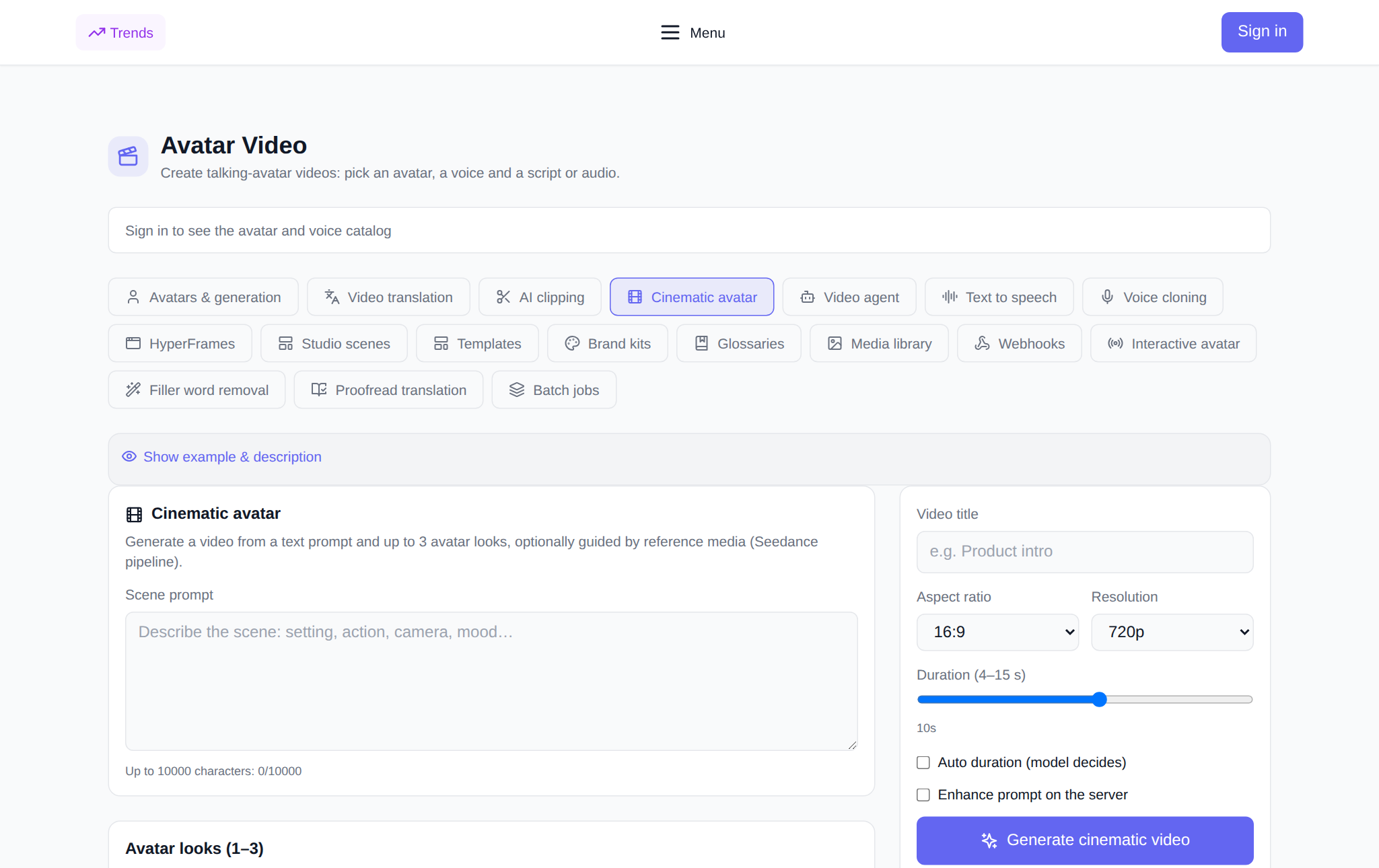
- Scene prompt — up to 10,000 characters. The placeholder itself suggests the formula: location, action, camera, mood.
- Avatars — 1 to 3. Two or three characters can share one frame: a meeting, a conversation of glances, a two-person chase.
- References — up to 9 images and 3 videos. Your own pictures and clips hint at style, location, color palette and motion plasticity; audio is not used in references.
- Format and resolution. 16:9 for YouTube and websites, 9:16 for Shorts, Reels and TikTok, 1:1 for social feeds; quality of 720p or 1080p.
- Duration — 4–15 seconds or Auto. The slider fixes the length manually, while the “Auto duration” checkbox lets the model decide.
- “Enhance prompt on the server”. A short sketch expands into a detailed cinematic scene — handy while your description is still two words long.
How to make a clip in five steps
- Open the Cinematic avatar tab in the Video avatars section and sign in — the avatar catalog loads after login.
- Pick one to three avatars from the catalog: their portraits become the visual base of the scene.
- Describe the scene in the prompt: where the action happens, what the characters do, where the light comes from and how the camera moves.
- Set the format, resolution and duration; optionally tick “enhance prompt” and add references — images or videos.
- Hit “Generate cinematic video”. The price in tokens is shown before launch. Progress appears in the “My cinematic videos” block: the card updates itself and the finished clip downloads with one button.
How to write a prompt that looks like a movie
Three things create depth: light, camera and air. Describe light by its source and side — “soft backlight at sunset”, “cold neon from the left”, “golden hour, long shadows”. Describe the camera by the character of its movement — “slow push-in from wide to a close-up”, “orbit around the hero”, “subtle handheld shake”. Describe air through environment details — “light haze”, “dust in a light beam”, “raindrops in backlight”. Film terms work too: “shallow depth of field”, “rack focus”, “wide-angle shot”. Keep one action per frame: 4–15 seconds will not fit a plot, but they fit one expressive scene statement perfectly. Example: “A quiet morning in a café by the window, a woman leafs through a notebook, the camera slowly pushes in from wide to close-up, soft backlight, light steam from the coffee”.
Where a cinematic insert comes in handy
- Channel intros and outros: an atmospheric frame with your character instead of a standard bumper.
- Ads and teasers: a vertical 9:16 clip for stories and Shorts where the product is sold through mood.
- Transitions in long videos: divider scenes between blocks of a webinar or podcast.
- Living covers and previews: camera movement brings a static feed card to life.
- Presentations and landing pages: background video with a hero character, no film crew needed.
What a generation costs
The platform is billed in tokens, with no subscription; new users receive starter tokens at sign-up, and the balance can then be topped up by any amount. In the cinematic mode the price is fixed — the same for every clip regardless of duration, format or resolution. The exact amount in tokens is displayed in the interface before you press the launch button, so billing is always predictable.
How it pairs with other tabs in the section
A cinematic frame works well in a pipeline: voice over the scene is added in the Text to speech and Voice cloning tabs, dubbing into other languages goes through Video translation, reference files are kept at hand in the Media library, and if you need a talking avatar with a script, head back to the Avatars & generation tab.
FAQ
How is the cinematic avatar different from regular avatar generation? The regular tab produces a talking video: script, voice, lip sync. Cinematic assembles a visual scene — light, camera, mood — from a prompt, with no script and no voice-over.
Can I put several characters in one scene? Yes, up to three: select two or three avatars and all of them will appear in the same frame — for example, in a meeting or dialogue scene.
Can I upload my own photo? The catalog offers ready-made avatars, while your own images and videos are added as references — up to 9 pictures and 3 clips; they hint at style and environment for the model.
Should I set duration manually or use Auto? For stories and teasers a fixed 4–8 seconds is convenient; for atmospheric inserts with an orbiting camera try “Auto duration” — the model stretches the scene to a natural length itself.