AI clipping: how to turn long videos into viral shorts

AI clipping is a tool that automatically transforms long-form horizontal videos — webinars, podcasts, interviews, lectures, and live streams — into ready-to-publish vertical clips for Shorts, Reels, and TikTok. The model analyzes speech and context, extracts self-contained highlights, reframes them to your chosen aspect ratio, adds styled captions, and calculates a virality score. On NeuralSpace, the tool lives in the AI clipping tab of the Video avatars section. Below is an overview of its core features, a step-by-step workflow, key settings, and practical use cases.
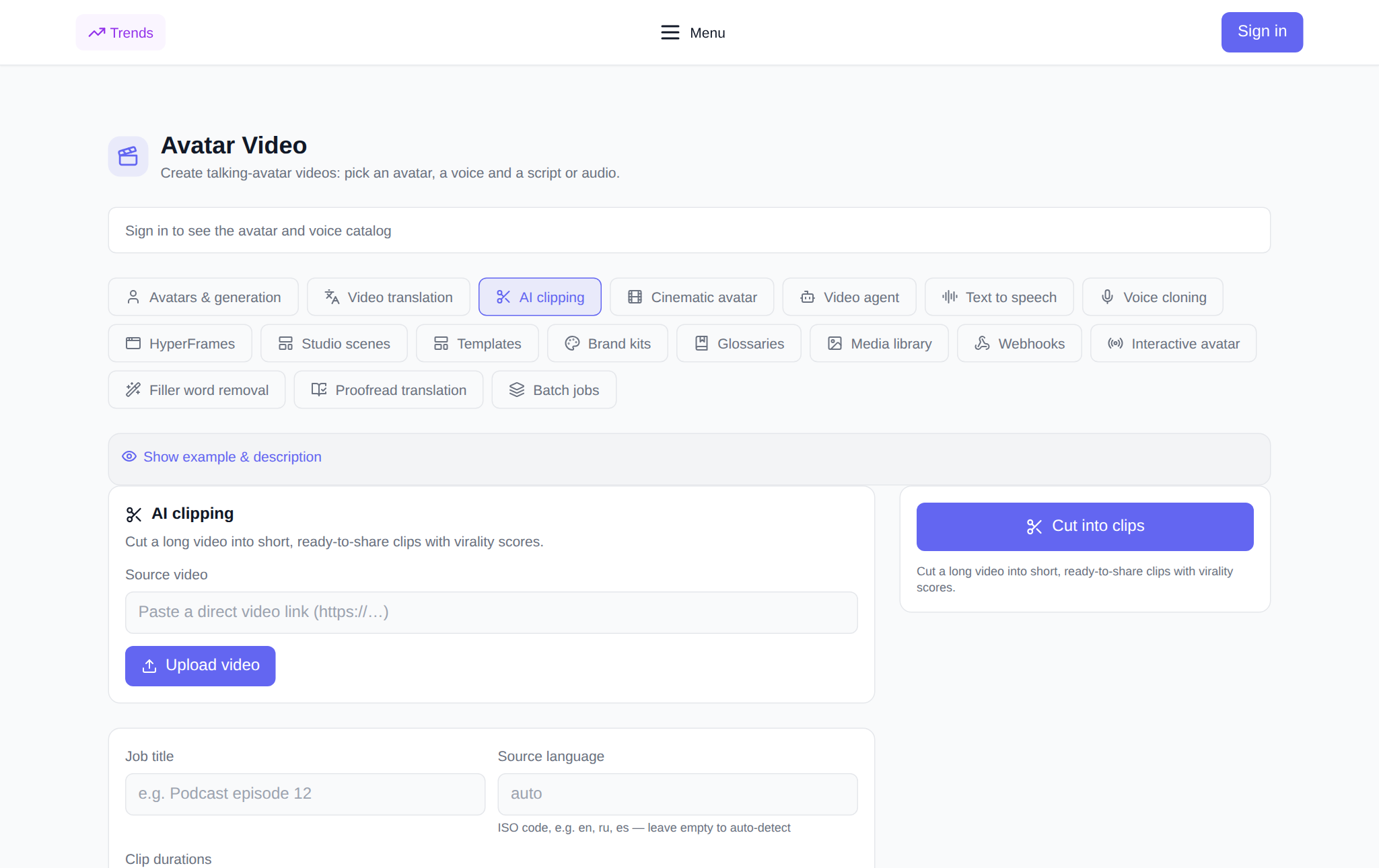
What AI clipping can do
Instead of manually scrubbing hours of footage on a timeline, AI clipping automates the entire discovery and editing phase. You upload a video file or paste a direct video URL. The system transcribes the dialogue, locates key thematic takeaways, and produces short video cuts. Each generated clip includes a video player preview, runtime, virality score, and a direct download link. You can also burn in subtitles directly, making each clip ready for social feeds right away.
How to clip long video: step by step
- Open the tool tab. Navigate to neuralspace.pro/en/avatars/ai-clips. The section is open for public review without login; authentication is requested only when launching a job.
- Add your source video. Enter a direct URL in the Video URL field or click the Upload video button to pick a local video file. The selected filename will appear alongside.
- Specify a job title and language. In the Job title field, assign a recognizable name (e.g., “Podcast #12: Growth Tactics”). In the Source language field, enter a two-letter ISO code (such as en, es, or ru) or leave it empty for automatic speech detection.
- Select target durations. Use the duration pills to choose 30 s, 60 s, 3 min, or Long. You can select multiple ranges simultaneously — the system will generate clips matching each active duration range.
- Set aspect ratio and captions. Choose your framing: Portrait 9:16 (for Shorts and Reels), Landscape 16:9, or Square 1:1. Check the Burn in captions box and optionally specify a visual style (classic, bold).
- Provide an editorial prompt (optional). In the Editorial prompt field, guide the selection criteria: for instance, “focus on actionable advice, mistake breakdowns, and metric highlights”.
- Start clipping. The estimated token cost is shown before launching. Click Cut into clips to begin. Job progress and rendered clips will appear in the My clip jobs section below.
Settings that shape the outcome
The resulting clips are influenced by several essential parameters:
- Duration ranges: Short intervals (30 s and 60 s) work best for punchy insights and hooks, while 3 min accommodates in-depth explanations and case studies.
- Editorial prompt: If left blank, the algorithm highlights the most dynamic moments automatically. Providing targeted prompt keywords directs the curation toward topics your audience cares about.
- Captions: Over 70% of vertical video viewers watch without sound. Burning in captions boosts viewer retention right from the opening second.
- Virality score: Each clip is scored on predicted viewer engagement based on narrative pacing, information density, and hook strength.
Integration across the Video avatars section
AI clipping pairs smoothly with other workflow tools on NeuralSpace. Exported clips can be imported into the Video translation tab to dub them into 175+ languages with synchronized lip movement. If your recording has awkward pauses or fillers, clean them up first in the Filler words removal tab. You can also enrich your clips with AI avatars or custom voiceovers using the Avatars & generation and Voice cloning tabs.
What it costs
Usage on NeuralSpace is token-based with no mandatory recurring subscription. New users receive starting tokens upon registration, and you can top up your balance whenever needed. The token cost depends on source video duration and the number of selected clip lengths. The exact estimate is displayed in the panel before you confirm, ensuring complete transparency.
Where AI clipping helps most
The tool saves dozens of production hours across common media workflows:
- Podcasters and streamers: Turn a 90-minute broadcast into 10–15 engaging social clips for weekly posting schedules.
- Course creators and educators: Extract bite-sized answers and quick tips from recorded masterclasses.
- Marketing teams: Repurpose keynote presentations and client webinars into organic awareness assets without video editors.
- Corporate communications: Create digestible summaries from lengthy company updates and training sessions.
FAQ
Do I need to trim timestamps manually? No, the AI scans the entire recording and identifies coherent segments with natural opening hooks and concluding thoughts.
How is the virality score calculated? The model assesses speech dynamics, emotional cadence, clarity of insight, and hook potential to predict social engagement.
Can I export horizontal or square clips? Yes, you can choose Portrait 9:16, Landscape 16:9, or Square 1:1 depending on your publishing destination.
Can I translate finished clips into other languages? Yes, you can load the downloaded clip into the Video translation tab and produce dubbed versions across 175+ languages.